How to Diagnose Lip Sync, Teeth and Smile Problems in AI UGC Videos
Diagnose lip-sync timing, incorrect mouth shapes and face artifacts in AI video, then choose a targeted repair.
 JessieCOO
On this page
Separate a mouth that moves at the wrong time from a mouth whose shape changes incorrectly. A timing adjustment may fix the former. A retake or a different shot is often the more practical first thing to try when the geometry changes.
The examples below illustrate a diagnosis and editing workflow. They are not a repair benchmark.
Mark the first frame where the issue appears
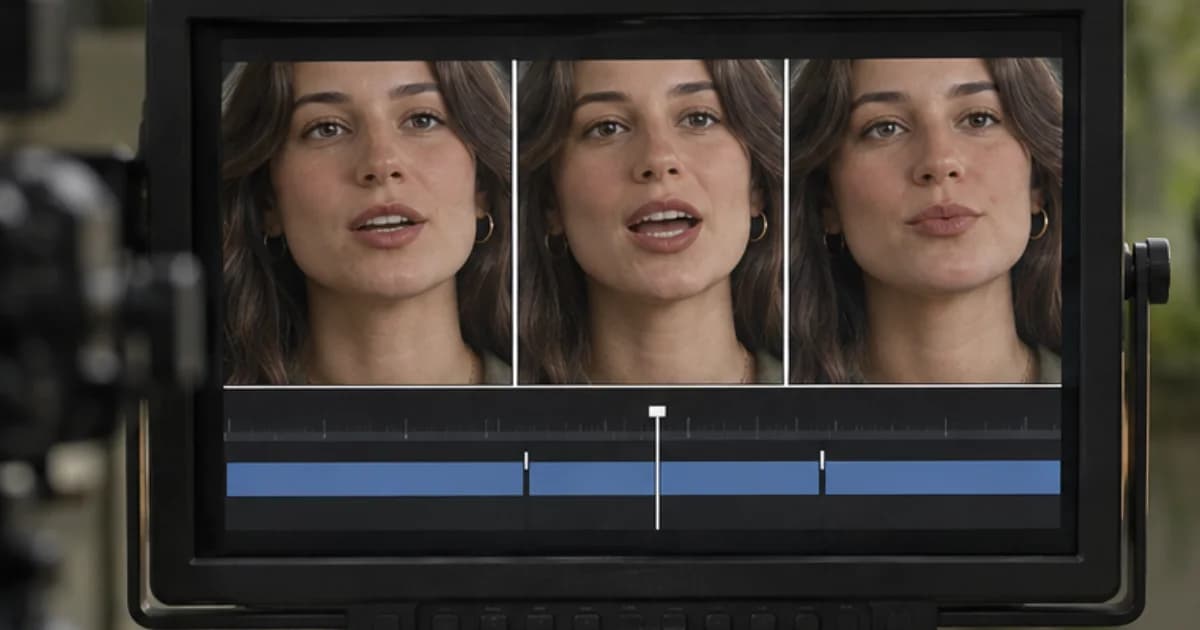
Play at normal speed with the audio. Note the word and time where attention moves to the mouth. Next mute the clip and watch the affected moment. When the shape looks coherent without sound but a consonant arrives late, timing may be the issue. When the teeth flicker, multiply or change shape even while muted, note a visual problem.
| Symptom | What to compare | First repair to try |
|---|---|---|
| Speech starts before the lips move | Raw audio and the edited cut | Correct placement on the timeline and recheck start and end |
| Mouth follows most of the line, then drifts | Natural pauses and where edited audio differs from the source | Shorten the segment or rework the synchronization |
| Teeth change shape during a smile | Before, during and after the expression | Simplify the expression and rerun only that shot |
| Lower face distorts during a turn | Framing, reference and head movement | Try a smaller turn or a more suitable reference |
| Mouth sits behind a hand or product | Occlusion and whether the close-up is necessary | Use a product insert or choose a simpler shot |
Choose a repair that preserves the story
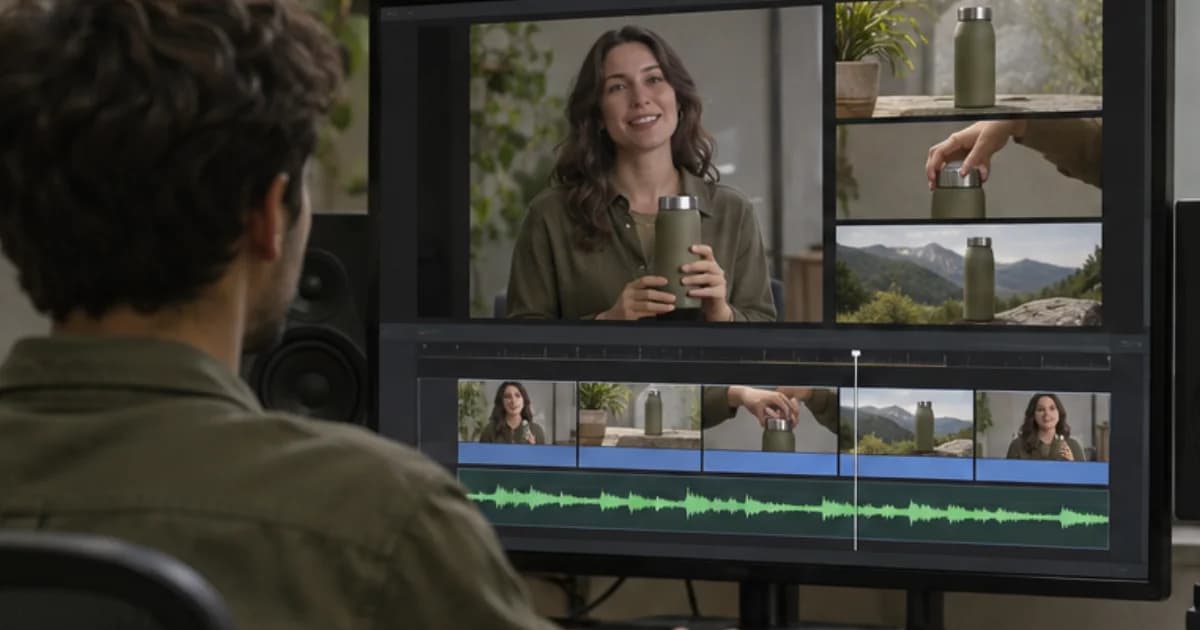
Suppose an illustrative ad asks a question on camera, then explains a cable holder. A mouth error during the question may require a new presenter take. A problem during the product instruction can be cut to actual product footage while the approved audio continues. The cut should show the thing being discussed and give viewers sufficient time to see the result.
Approve the new version against the original task
Watch the edit at phone size and normal speed. Then inspect the affected frames to understand what changed. Verify that the pronunciation, mouth timing and recognizable face are all acceptable. If speed or other visual details got worse, log the new problem and reconsider whether a real cutaway is preferable.
Keep a timestamp, line, failure type, changed property and review decision. If the output still looks unreliable, leave the shot out. A useful clip explains the product clearly without asking the viewer to ignore a visible error.