GPT Image 2.5 Flare & Sunburst are live on EvoLinkTry GPT Image 2.5
EvoLink MCP

In your AI agent,
create images and videos.

Connect EvoLink MCP to find models, check costs,
and run image, video and audio tasks with your agent.

Which agent are you using?

Add EvoLink with the button below. The first time, sign in to EvoLink in your browser and approve; there's no API key to copy.

Sign in to EvoLink when asked and approve, then return to the conversation.

Server URLhttps://mcp.evolink.ai/mcp

WITH EVOLINK MCP

What you can ask your agent to do.

Start with a specific request.
Copy an example to your agent, or adapt it to your own task.

EvoLink MCPWorkflow illustration
Create a road trip hero image.
Road trip hero imageIllustrative image result
Describe the request, approve generation, and retrieve the image.

Generate images

Create product shots, page hero images, or creative illustrations.

Example prompt

Use EvoLink to generate a valley road trip hero image: a vintage sports coupe, overcast mountains, wet pavement, realistic film photography, restrained colors, and natural light. First confirm the model, inputs, and cost. Wait for my approval before generating, then return a result I can view or download.

EvoLink MCPWorkflow illustration
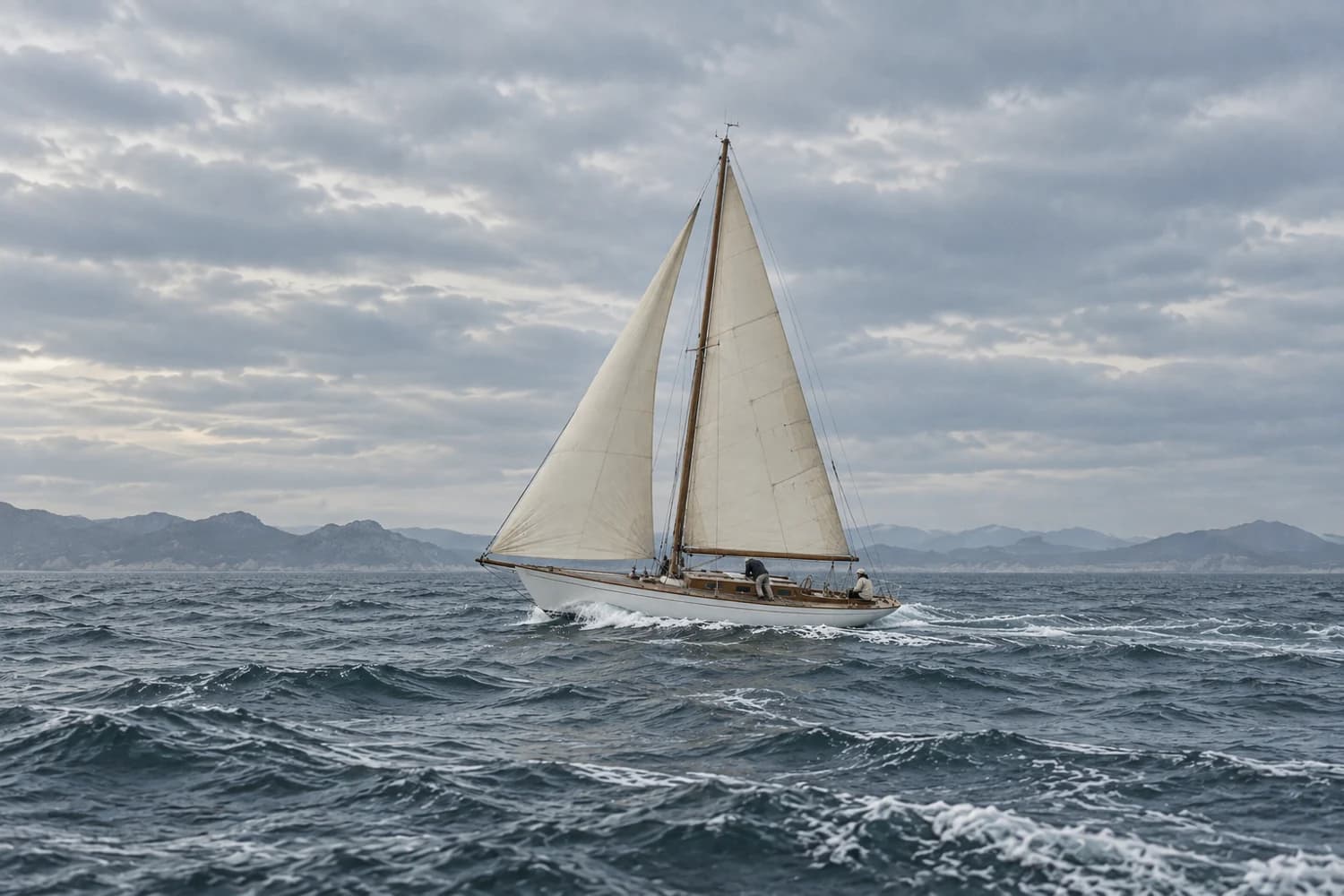
Create a cinematic sailing short film.
Sailing video coverIllustrative video result
Describe the shots, approve generation, and check the result.

Create short videos

Describe the shots and scene, and ask your agent to create a short film.

Example prompt

Use EvoLink to create a cinematic sailing short film with ivory sails, a gray-blue sea, soft overcast light, restrained colors, realistic film texture, and documentary sailing shots. First clarify the inputs, duration, and visual requirements, and check models and costs. Wait for my approval before submitting, then check the original task's progress and return the result.

EvoLink MCPWorkflow illustration
Which model fits a short video from a product photo?
Select models for the task
01Input requirementsReference images supported
02Output capabilitiesShort video generation
03Comparison criteriaDuration · Quality · Price
Check the requirements, then suggest suitable options.

Find a suitable model

Compare capabilities and input requirements for your task.

Example prompt

I want to turn a product photo into a short video. Use EvoLink to find suitable models, compare their input requirements, output capabilities, and pricing basis, and explain which options fit best. Do not generate anything yet.

EvoLink MCPWorkflow illustration
How much would 10 images cost?
Cost basis for this taskQuery first, generate later
Quantity10 images
Model and output specsTo be confirmed
Current unit price and billing rulesQuery the selected model
Confirm specifications, then explain the estimate and calculation.

Check the cost

Check prices and billing conditions before deciding to generate.

Example prompt

I want to generate 10 images. Use EvoLink to check model prices, and first confirm the required specifications and billing conditions with me. If an estimate is possible, explain the calculation in USD and credits; otherwise, state the unit price and missing information. Do not generate anything yet.

EvoLink MCPWorkflow illustration
What is missing to turn this product photo into a video?
product.jpgProduct reference image✓
Shots and motionDescription needed
Video duration and aspect ratioConfirmation needed
Model parameters and limitsQuery current requirements
Identify what is missing before preparing generation.

Prepare assets and parameters

Clarify the required assets, parameters, and limits.

Example prompt

I want to turn a product photo into a video. Use EvoLink to query the asset and parameter requirements of suitable models. Explain required fields, allowed values, limits, and which conditions affect cost. Tell me what to provide first if any assets are missing.

EvoLink MCPWorkflow illustration
Query current models, prices, and parameters.
MModel catalogCurrently available image and video models✓
$Pricing basisCurrent unit prices and billing conditions✓
{ }Inputs and parametersRequired assets, allowed values, and limits✓
Return sources and their update dates when available.

Get current information

Query current models, prices, and parameters again.

Example prompt

Through the connected EvoLink MCP, query currently available image and video models, prices, and input requirements. Explain the sources and include update dates when available, rather than relying on outdated information from memory. If it is not connected yet, first explain how to connect.

ABOUT EVOLINK MCP

Give your agent
tools to create.

EvoLink MCP uses the Model Context Protocol to connect the agent you already use to 150+ image, video and audio models on EvoLink's unified gateway: find models, check parameters and prices, get quotes, generate, and follow tasks through.

Browse the model catalog
Check first

Compare models, input requirements and prices for the task. Lookups are free.

Then create

Submit once you confirm, then get image, video or audio results you can view or download. Result links last 24 hours.

Clarify inputs

Query the model's asset and parameter requirements to identify missing inputs and conditions affecting output and cost.

Resume the original task

Keep the task identifier and check its status. If authorization or balance needs attention, resolve it and return to the original task.

Share reference files as public links, or let your agent upload them first (up to 95 MB). The hosted service can't read file paths on your computer.

BEFORE YOU START

Before you start,
what do you need?

Prepare your account, task assets, and generation balance.
Confirm the requirements, then continue in your agent.

01

EvoLink account

The first time you connect, sign in to EvoLink in your browser and approve; you can sign up there. No API key to copy.

02

Task and assets

Describe the task and prepare the reference files the model needs. Public links are easiest; your agent can upload local files first.

03

Generation balance

Generation is charged to your balance at model prices, and the balance is shared with the API and web app. Check the quote first, then top up if needed.

Understand the cost before generating.

The MCP itself is free and needs no subscription. Finding models, quotes, task checks and balance checks cost nothing; only generation is charged, at the same prices as the API, and failed tasks are refunded. Most models can be quoted before generating, and the settled charge is final; token-billed image models only show their cost after generating.

View current model prices

After your first connection, API Keys in the dashboard shows a key named EvoLink MCP (OAuth), shared by all your agents. There is no spending limit by default: set a total limit, a daily limit or an expiry date on it to cap MCP spending, or disable it to pause MCP for every agent.

AGENT RESOURCES

Help your agent understand the tools
and what to do next.

Capabilities, requirements, and setup steps are available as readable resources. Check suitability before querying models, and give the person a clear next step when authorization or assets are missing.

QUESTIONS & ANSWERS

Before you start,
get your questions answered.

Setup, costs, assets, and task progress.
Start with your question and find the next step.

What is EvoLink MCP?

EvoLink MCP uses the Model Context Protocol to bring EvoLink's 150+ image, video and audio models into the agent you already use. Ask in your conversation: the agent finds a model, quotes the price (a few models only show the cost after generating), and generates and returns the result once you confirm.

View capabilities and requirements
Which agents can connect?

Claude (web and desktop), Claude Code, Codex and Cursor are supported in this first release and have setup steps. Other clients that support remote MCP with OAuth sign-in, such as ChatGPT, OpenClaw and Hermes, can usually connect with the same URL, but we haven't tested each one.

View client setup guides
How do I get started?

Pick your agent: Claude and Cursor add EvoLink in one click; for ChatGPT on the web, copy the server URL and add it on the plugins page; Claude Code, Codex and other command-line agents can install it from a setup prompt you copy. The first time, sign in to EvoLink in your browser and approve. Back in your agent, ask it to look up a model; a response means you're connected.

View connection and verification steps
Does connecting cost anything, and how is generation billed?

The MCP itself is free and needs no subscription. Finding models, checking parameters and prices, quotes, task checks and balance checks are free. Generation is charged to your EvoLink balance at the model's price, the same as the API, and failed tasks are refunded. Each client's own plan rules still apply; for example, Claude's Free plan can add one custom connector.

View current model prices
Do I need an API key?

No, and no keys from model providers either. The first time you connect, sign in to EvoLink in your browser and approve. Afterwards, API Keys in the dashboard shows EvoLink MCP (OAuth), shared by all your agents; you can set limits on it or disable it.

View setup steps
How do I cap spending or pause MCP?

In the dashboard, open API Keys and find EvoLink MCP (OAuth). Set a total limit, a daily limit or an expiry date; disable it to pause MCP for every agent without affecting your other keys, and enable it again to resume without reconnecting.

Open API Keys
Can I query models and costs without generating?

Yes. Say "don't generate yet" and your agent will only look up models, input requirements and prices. Lookups are free.

View read-only query examples
What do I need for image-to-video?

Prepare the reference image as a public link, or let your agent upload the local file first (up to 95 MB). Then describe the shots, motion, duration and aspect ratio. Your agent checks required fields, allowed values and file limits against the selected model and tells you what's missing.

View asset and parameter examples
Should I resubmit a task that is still processing?

No. Have your agent check the original task with its task ID; resubmitting creates another billable task. Video and audio take a while, and your agent follows the progress for you. If you need to top up or reauthorize, do that and return to the original task.

View task recovery information
Does this change my agent's language model?

This adds callable tools to your existing agent. Configuring an EvoLink language model for Claude Code, Codex, or another client is a separate integration. Use the corresponding LLM integration guide for that purpose.

View other integration documentation