An AI UGC Video Prompt Template for Product Ads
Write reusable shot prompts for AI UGC ads. Includes separate templates for the presenter, product action and the end of a clip.
 JessieCOO
On this page
Write an AI UGC video prompt as a shot brief. Describe what is visible at the start, what changes in the shot, what the presenter says and which product details must stay accurate. Keep output settings and reference files in their documented fields.
This guide uses an illustrative ad for a desk cable holder. The prompt is a starting point for a generation test. It does not report generated footage, hit rates or campaign results.
Start from the shot, rather than describing an entire ad
A line like “make a realistic viral ad for this thing” leaves the model to choose the presenter, product behavior, camera, and timing. First decide the purpose of the shot. An opener can name a problem, while a product demonstration must show what the viewer can verify.
In this example, one shot introduces a cable that keeps dropping behind the desk. The presenter does not need to install the holder during that sentence. The next shot can show the actual product clearly, including how the cable sits after the person lets go.
| What to specify | What goes in the brief | Cable-holder example |
|---|---|---|
| Shot purpose | What the viewer learns | Why a cable keeps disappearing behind the desk |
| Initial picture | Subject position, framing, props already visible | Chest-up presenter against a desk |
| Action | One visible movement and its order | Look at the camera, then nod slightly |
| Dialogue | Exact line or approved audio, if supported | “Does your charger keep dropping behind the desk?” |
| Product constraint | Checkable physical details | Show exactly three channels on the separate product shot |
| Exit | Final state that allows an edit | Presenter returns their gaze to camera and holds |
A template you can paste and adapt
SHOT PURPOSE: [one change or idea the viewer should understand]
STARTING FRAME: [where the presenter and product are, camera height, framing]
ACTION: [what happens, in what order]
DIALOGUE: [exact words, or the purpose of the supplied audio]
PRODUCT DETAIL: [verified features that will be visible]
ENDING: [where the subject or object is at the cut]
Use the smallest number of instructions that still defines a recognizable output. If the same shot asks the presenter to turn, grab the product, speak and demonstrate a fine movement, split it into two. That gives you a clear way to see whether a failure comes from motion or product handling.
Two ways to apply the template
Presenter opening
A chest-up shot of a presenter at a desk, looking at the camera.
They ask, "Does your charger keep dropping behind the desk?"
After the question, they give a small nod and keep their gaze at eye level.
The camera stays still. Product handling takes place in a separate clip.
Check that the question is spoken, that its ending is audible, and that the face stays coherent when the presenter nods. If the route uses independent audio, move the line to that supported input or record it separately.
Product detail
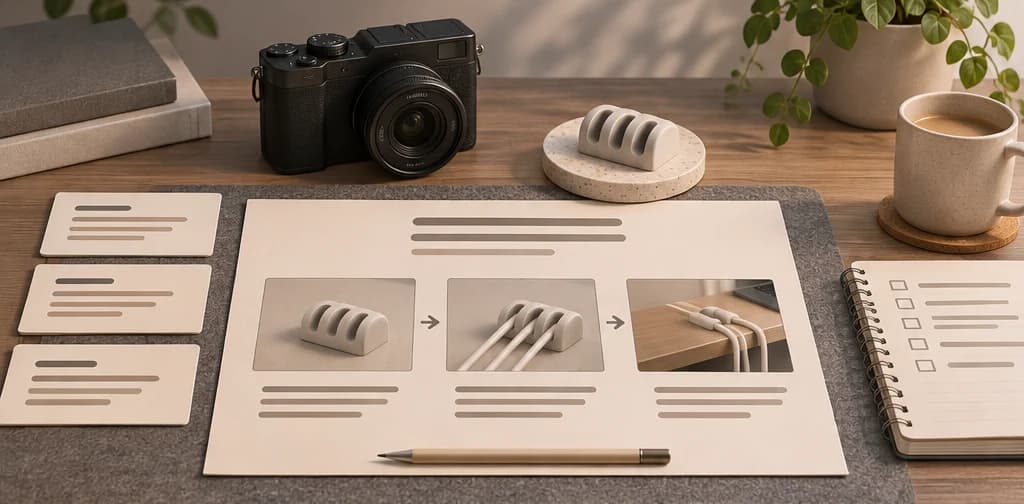
A real product shot is useful when the physical detail carries the claim. Film an empty holder, a cable being inserted, and the hand leaving. If you want a generated concept shot, describe the motion and geometry separately, then verify the actual result against the product.
Top-down view of a cable holder with three parallel channels.
A hand places one cable into the middle channel, then releases it.
The cable stays in the middle channel. The camera holds on the result.
If a draft changes the number of slots, cuts before the hand releases, or covers the cable with the fingers, the viewer cannot confirm the claim. Fix the source image if it already depicts the wrong object. Otherwise simplify the action, or use the real product clip. Avoid tightening the wording around an inaccurate visual.
Edit the prompt based on the actual failure
Change one input at a time. When the result shows a head turn instead of a nod, keep the portrait and script fixed and clarify the motion. When the speech is wrong, check the supplied script, audio support and take before touching the camera line. When the product changes, compare the generated object with a verified image or real footage.
A good production prompt can be reviewed after generation. Keep the exact text, route, input assets, settings and result together. The useful record is why a shot met or failed the brief, not how elaborate the prompt looked.