Why Your AI UGC Video Looks Different from the Tutorial
Compare the tutorial with your real request. Check the input mode, references, edits and raw output to diagnose a different-looking AI UGC video.
 JessieCOO
On this page
If a tutorial’s prompt produces a different clip for you, first compare the inputs, route and edits. Save the tutorial’s stated settings and your actual request in one place. Then retest the first meaningful difference while holding the other inputs fixed.
A tutorial often shows the chosen take. It may not document every generation, version or edit. Treat any missing setting as unknown. You can use the steps it actually provides without guessing what happened off-screen.
Compare the two starting points
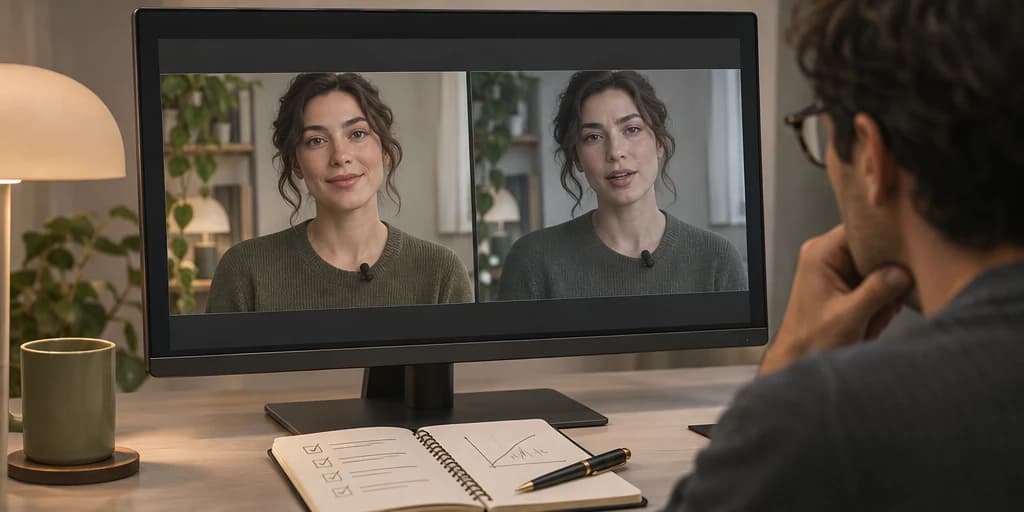
Assume a tutorial shows a presenter looking at the camera and gesturing toward a product on the desk. Your version shows the same setup, but the face shifts during the gesture and the word “pocket” is missing. This is a hypothetical reproduction example, not a claim about a particular creator’s output.
Open a side-by-side record:
| Compare | Tutorial | Your run |
|---|---|---|
| Generation route | Which model and input mode are stated? | Copy the actual model ID or UI mode |
| Starting material | Does it use text, an approved portrait or up to several references? | Save the actual image, audio or video version |
| Output requirements | Does it state aspect ratio, length and sound options? | Record the values submitted |
| Performance | Which spoken line and movements were requested? | Copy the exact line and direction separately |
| Editing | Where did the final video use cuts, dubbing or overlays? | Save raw output and final export separately |
| Candidate selection | Is the attempt count reported? | Log all attempted takes, including discarded ones |
Do not enter a guessed parameter as if it were confirmed. Even a fully documented request may not reproduce the same frames. The goal is to regain the properties you care about, such as an accurate product shot or clear speech.
Confirm the route before refining the prompt
A first-frame image, reference image and reference video can have different roles. Choose the input mode for the asset you want to constrain. If the tutorial begins from a still portrait but your request starts with text alone, adjust that difference before editing individual motion phrases.
seedance-2.5-text-to-video starts from a written prompt and seedance-2.5-image-to-video can start from a supplied image. Check the current parameter and audio settings for the route you actually call. A mode name on a third-party interface does not establish which API and options it uses. Seedance 2.5 model pageAlso compare the reference itself. If a disputed product detail is already wrong in the input image, improving the movement prompt will not establish the correct specification. Resolve that first, or rely on real product footage for the action.
Repair one visible or audible problem at a time
Start with one short clip and the defect you can describe precisely.
- Face changes during a head turn. Save the original clip and mark the point. Use the same portrait, framing and line, then ask for a smaller movement. Compare the two turns at normal speed and check the affected frames.
- A word is missing. Listen without looking at the picture. Confirm the original prompt or recording contains the word. If it was supplied but missing from synthesized dialogue, try a shorter line, or use approved audio and adjust the edit to match.
- Product is correct at first and then changes shape. Check whether the gesture, occlusion or movement reveals the inconsistency. If the product is the subject of the shot, replace that part with a verified real clip. A convincing face does not fix an inaccurate product.
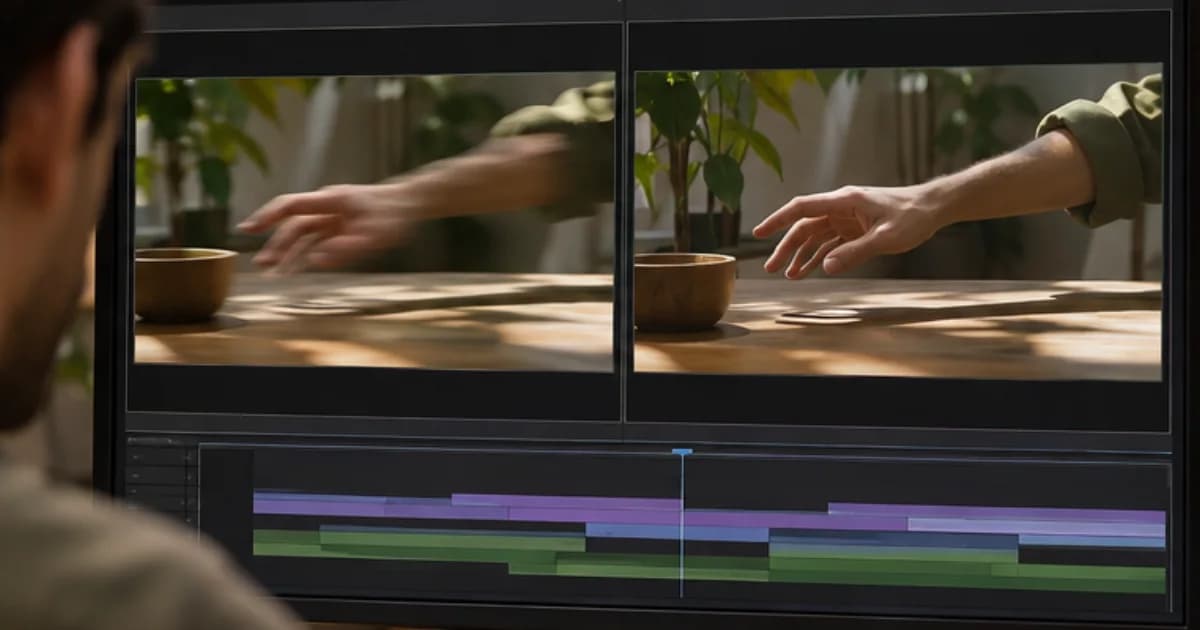
- The raw clip looks different from the posted edit. Identify parts of the tutorial that actually show the input or raw output. Compare only like with like. If editing is documented, reproduce the relevant step using your own footage.
Use the smallest correction that can answer a specific question. A comparison where you change model, reference, prompt and edit at the same time provides little guidance about what to reuse next.
Write a reproduction note that someone else can use
Record the output and the reason for the next action. For example: “With the same portrait and line, less head movement kept the reference closer in this retake, but the last word was still missing. Keep reviewing the voice track separately.” That is a possible note format, not an observed result from this example.
Save both clips and link them to the brief, motion instructions, and task IDs. If you cannot recreate the underlying inputs or know how takes were selected, state that limit. You can still decide whether the available workflow can meet your own acceptance criteria. Stop rerendering when simpler approved footage or an audio replacement does the job more reliably for the current project.