GPT Image 2.6 GIF Guide: Prompts, Timing and API Examples
Make animated GIFs with GPT Image 2.6: choose Flare or Sunburst, write loop prompts, set frame timing, estimate costs and check the result.
 EvoLink TeamProduct Team
On this page
The practical appeal is the shorter path from an idea to a moving asset. If the job is a simple reaction, mascot gesture, or product loop, you can request the animation as the output and then refine its motion and pacing. Start by choosing a clear action; the technical settings come after the creative brief.
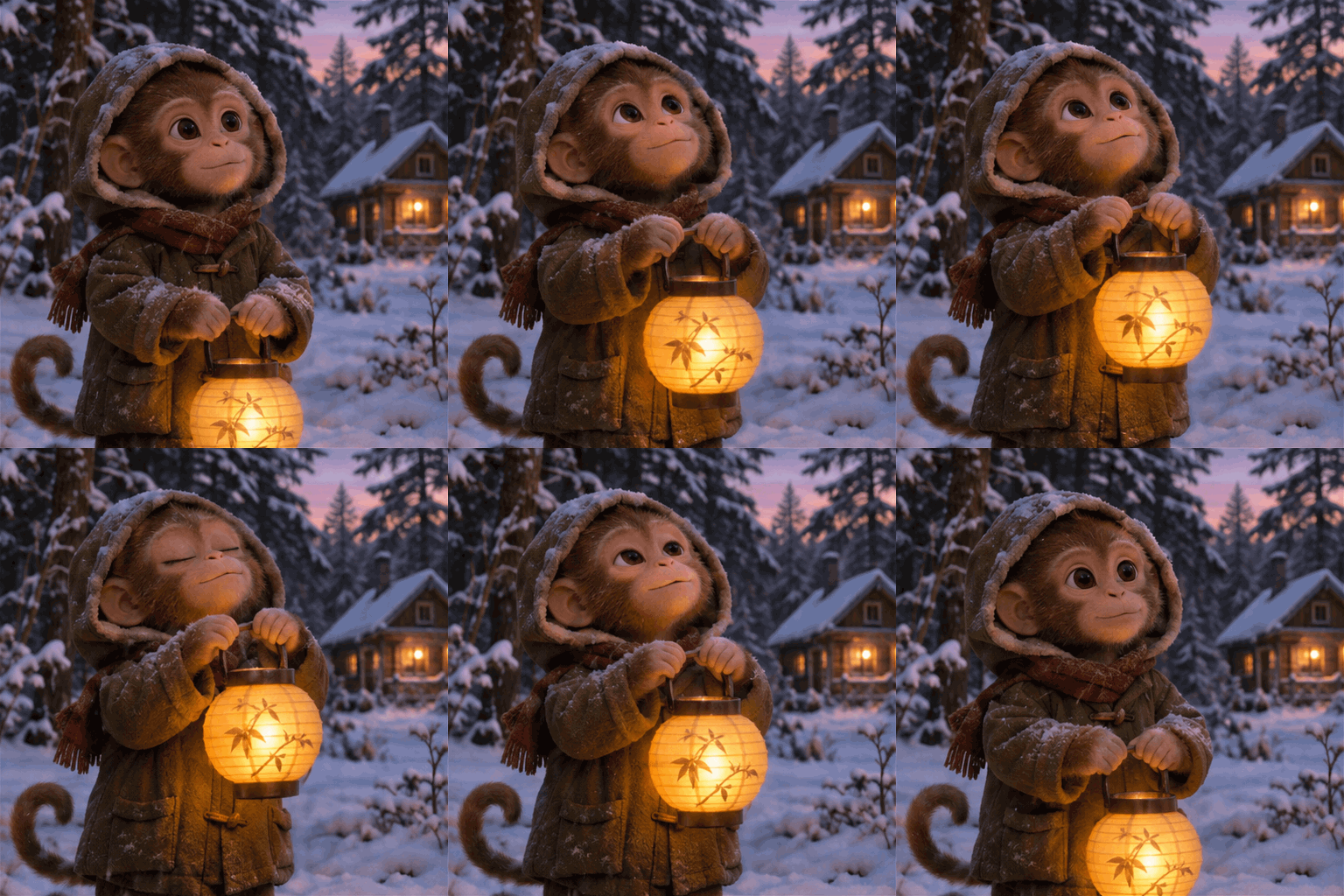
GPT Image 2.6 GIF: what changes in the workflow
GPT Image 2.6 can generate a finished GIF with controls for frame count and playback timing. If you previously used GPT Image 2.5 to create static frames or a sprite sheet, then assembled the animation yourself, you can now skip manually splitting, arranging, and exporting those frames. Spend that time refining the motion and the transition back to the start.
Compare the output path for the task:
| Model and workflow | What that workflow delivers | What remains for a GIF |
|---|---|---|
| GPT Image 2.6 GIF output | A finished animation, with frame-count and timing controls | Review the motion, loop, and file |
| GPT Image 2.5 used to create static frames or a sprite sheet | Artwork for the animation | Arrange the frames, set their timing, and export the GIF |
When choosing a workflow, first check whether it delivers the animation you need, then judge the character details, motion, and loop against your brief.
What kinds of GIFs are worth trying
Start with one subject and one action rather than several scene changes.
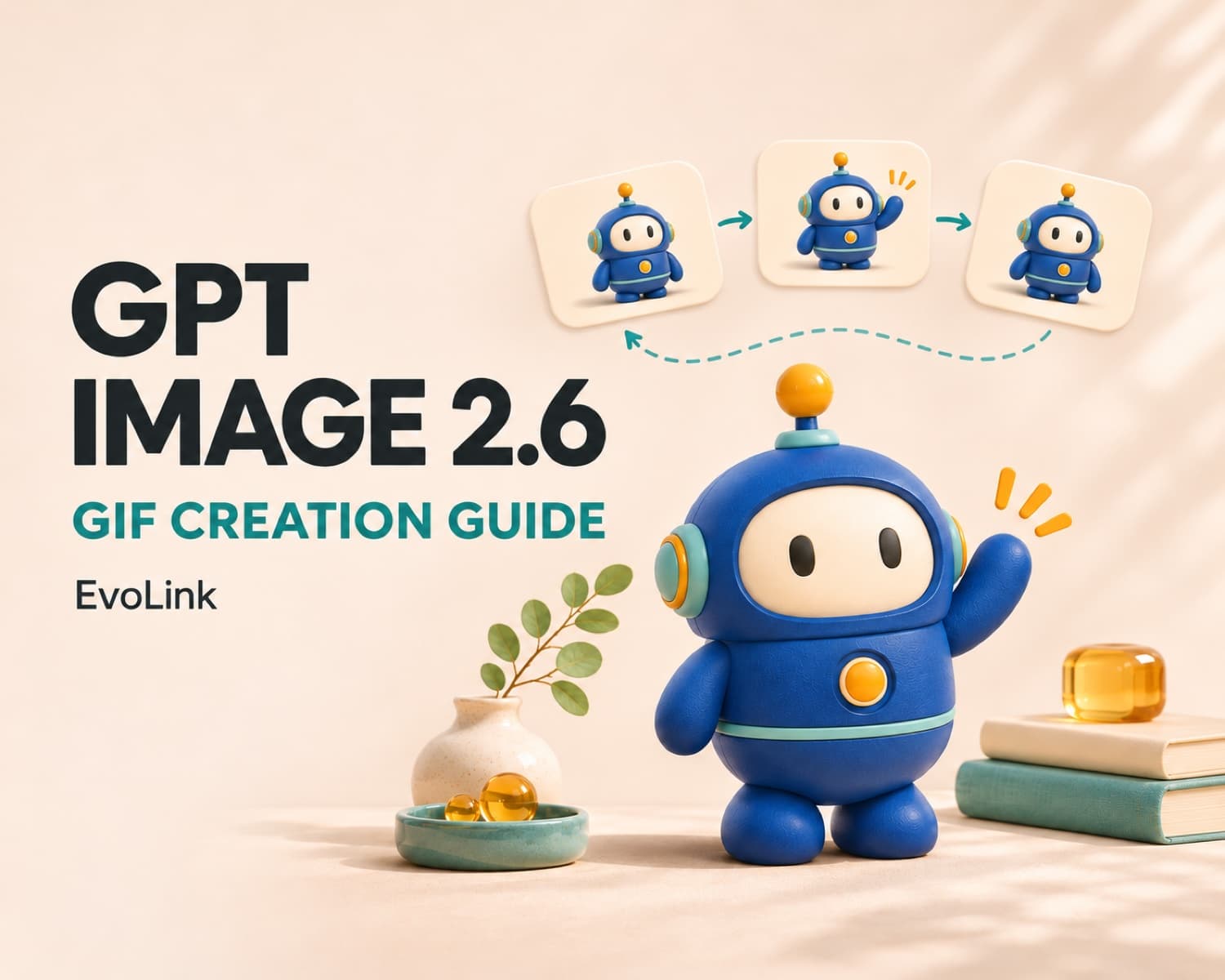
A loop needs an ending that connects to its beginning. For a waving robot, the action can be: rest, raise one hand, wave, and lower it back to rest. Keeping the camera and background fixed leaves fewer things that have to match across the loop boundary.
For example, a character that walks into a room, opens a box, changes clothes, and celebrates needs several separate beats. Fitting all of that into a short loop can make it harder to understand or return naturally to the opening pose.
For product work, use a movement that preserves the feature you need viewers to recognize. A small movement of a simple object is a more focused brief than a full camera orbit around packaging with small text. Inspect the result against the product reference before accepting it.
Choose Flare or Sunburst for GIF generation
Keep the motion instruction consistent when comparing outputs. Define the action and return to the starting pose before raising the rendering quality.
Write the prompt around motion and continuity
For a waving robot, try a prompt like this:
Create a seamless looping animated GIF of a small rounded blue robot standing in the center of a plain warm-white background. The robot raises its right hand, gives one small friendly wave, and lowers the hand back toward its resting pose. Keep its face, body proportions, colors, lighting, and screen position consistent. Use a fixed camera with no zoom, cuts, or background movement. The final movement should connect naturally to the starting pose. Keep the whole robot visible. No text, logos, labels, borders, or collage layout.
The important parts are the motion, what must stay fixed, and how the ending connects to the start. Select GIF in the output settings as well as describing the movement.
image_urls and must be accessible to the server. A reference provides an anchor, but the generated frames still need review. EvoLink request and reference guideTwo more motion prompts to copy
These English prompt templates use a small action and a return to the opening state. Keep the GIF format, frame count and timing controls from the steps below.
Create a seamless looping animated GIF of a small red panda mascot facing the camera on a plain cream background. It slowly closes both eyes, opens them with a small smile, then returns to its starting expression. Keep its ears, fur markings, body proportions, lighting and screen position consistent. Use a fixed camera and a still background. End in the opening pose. No text or scene cuts.
Use the supplied coffee product photo as the reference. Create a seamless looping animated GIF in which only a thin curl of steam rises from the cup and fades, while another curl returns the scene to the opening state. Keep the cup, logo, table, background, lighting and camera fixed. Keep the amount of visible steam similar at the beginning and end. No new objects or text.
image_urls. Adjust the background and lighting words to match that reference.Set frame count and timing separately
Two settings control different parts of the animation:
frame_countsets the number of frames. The documented range is 2–16, with a default of 9.frame_duration_mssets the delay for each frame. A starting value of 200 milliseconds gives each pose time to register. The default is also 200 milliseconds. OpenAI GIF parameter reference
For equal frame delays, one pass lasts approximately:
duration in seconds = frame_count × frame_duration_ms ÷ 1000| Frames | Delay per frame | Duration of one pass |
|---|---|---|
| 9 | 100 ms | 0.9 seconds |
| 9 | 200 ms | 1.8 seconds |
| 9 | 300 ms | 2.7 seconds |
Changing the delay changes playback speed. Add frames when the motion needs intermediate poses. If the hand jumps between positions, slowing playback may only make the jump easier to notice. Try a smaller motion, or more frames within the supported size budget.
Try your first GIF in the browser
size: auto uses 512×512 frames. Check the estimate before submitting.Which settings determine GIF cost?
The current route groups frame counts into sheet layouts: 2–8, 9, 10–12, and 13–16. At 512×512 per frame, a 9-frame 3×3 sheet is 1536×1536; a 16-frame 4×4 sheet is 2048×2048. Those calculations explain why adding frames can change the billable image size. Use the calculator for current dollar estimates.
Start with a smaller frame size and a draft quality setting. Raise quality after the action and loop work, and use the existing calculator to compare frame-count steps. Include prompt and reference-image inputs in the budget; final charges follow returned usage.
size describes each frame. The assembled sheet must also fit the route's limits. If a request is rejected, reduce frame dimensions or frame count to fit the supported combination. GIF size accepts auto or supported pixel dimensions.Check the animation before using it
Open the downloaded file in a viewer that plays animated GIFs, then watch several loops. A file preview can show only one frame even when the underlying file is animated.
| Problem | What to check or change |
|---|---|
| The result looks static | Confirm the actual file is GIF, inspect its frames, and use an animation-capable viewer |
| The loop visibly jumps | Make the final motion return toward the starting pose; remove camera or background changes |
| The character changes shape or position | Reduce the action, specify the fixed details, and use an approved reference |
| Movement is too fast | Increase the frame delay; use more poses if the problem is missing motion steps |
Review character identity, the opening-to-ending transition, frame timing, dimensions, and file size. For a product interface, also try the asset at its actual display size and on the intended background.
A useful first GIF is a short, readable action that repeats cleanly. Once that works, carry the same character reference and acceptance criteria into the next variation, rather than changing every setting at once.
Optional API integration
EVOLINK_API_KEY set in the environment:curl https://api.evolink.ai/v1/images/generations \
-H "Authorization: Bearer $EVOLINK_API_KEY" \
-H "Content-Type: application/json" \
-d '{
"model": "gpt-image-2.6-flare",
"prompt": "Create a seamless looping animated GIF of a small rounded blue robot standing in the center of a plain warm-white background. The robot raises its right hand, gives one small friendly wave, and lowers the hand back toward its resting pose. Keep its face, body proportions, colors, lighting, and screen position consistent. Use a fixed camera with no zoom, cuts, or background movement. The final movement should connect naturally to the starting pose. Keep the whole robot visible. No text, logos, labels, borders, or collage layout.",
"size": "auto",
"quality": "low",
"background": "opaque",
"output_format": "gif",
"n": 1,
"model_params": {
"frame_count": 9,
"frame_duration_ms": 200
}
}'model_params, use n: 1, and select an opaque background (background: "opaque"). EvoLink format and parameter rulesid. Use that value to query the task:curl "https://api.evolink.ai/v1/tasks/{task_id}" \
-H "Authorization: Bearer $EVOLINK_API_KEY"{task_id} with the returned ID. While status is pending or processing, continue checking the same task. On completed, download the URLs in results within 24 hours. On failed, inspect error.code and error.message before changing the request or retrying. If a client times out after receiving an ID, check that task first. EvoLink task resultsGPT Image 2.6 GIF FAQ
Can GPT Image 2.6 turn a photo or mascot image into a GIF?
image_urls and select output_format: "gif". EvoLink · OpenAI GIF guideHow many frames can a GIF have, and how long will it play?
frame_count × frame_duration_ms ÷ 1000 seconds; the default is 1.8 seconds. OpenAI GIF guideHow do I make the GIF loop more smoothly?
Use one small action, a fixed camera, and a steady background. Describe how the final movement returns to the opening pose. If motion skips between positions, reduce the movement or add intermediate poses by increasing the frame count within the size budget.
Should I choose Flare or Sunburst for GIFs?
How are GIFs priced on EvoLink?
Can I generate a GIF with a transparent background?
background: "opaque". Specify the desired solid background color in the prompt so the animation fits its intended page or campaign. EvoLink GIF settingsWhat should I check if the downloaded GIF does not move?
output_format: "gif" and that the file contains multiple frames.