Overview
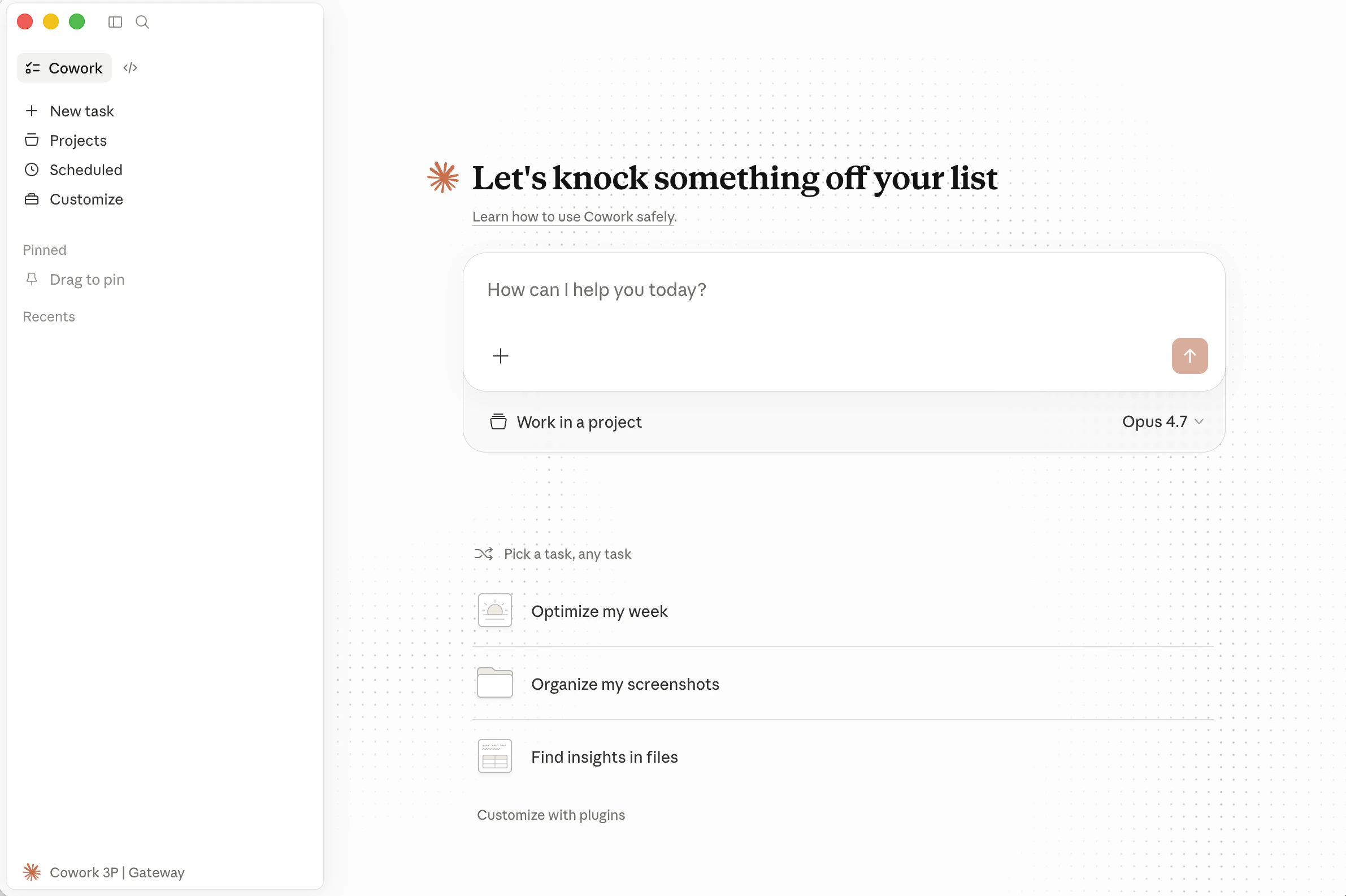
- Installing Claude Desktop
- Enabling Developer Mode
- Configuring the EvoLink connection
- Restarting and selecting a model
Prerequisites
Before you start, prepare your EvoLink API Key.Get an EvoLink API Key
- Log in to the EvoLink Console
- Find API Keys in the console, click Create New Key, then copy the generated key
- API keys usually start with
sk-; keep them safe
Step 1: Download Claude Desktop
Visit the Claude Desktop download page and install the version for your operating system.Tip: If Claude Desktop is not installed yet, complete the installation before continuing.
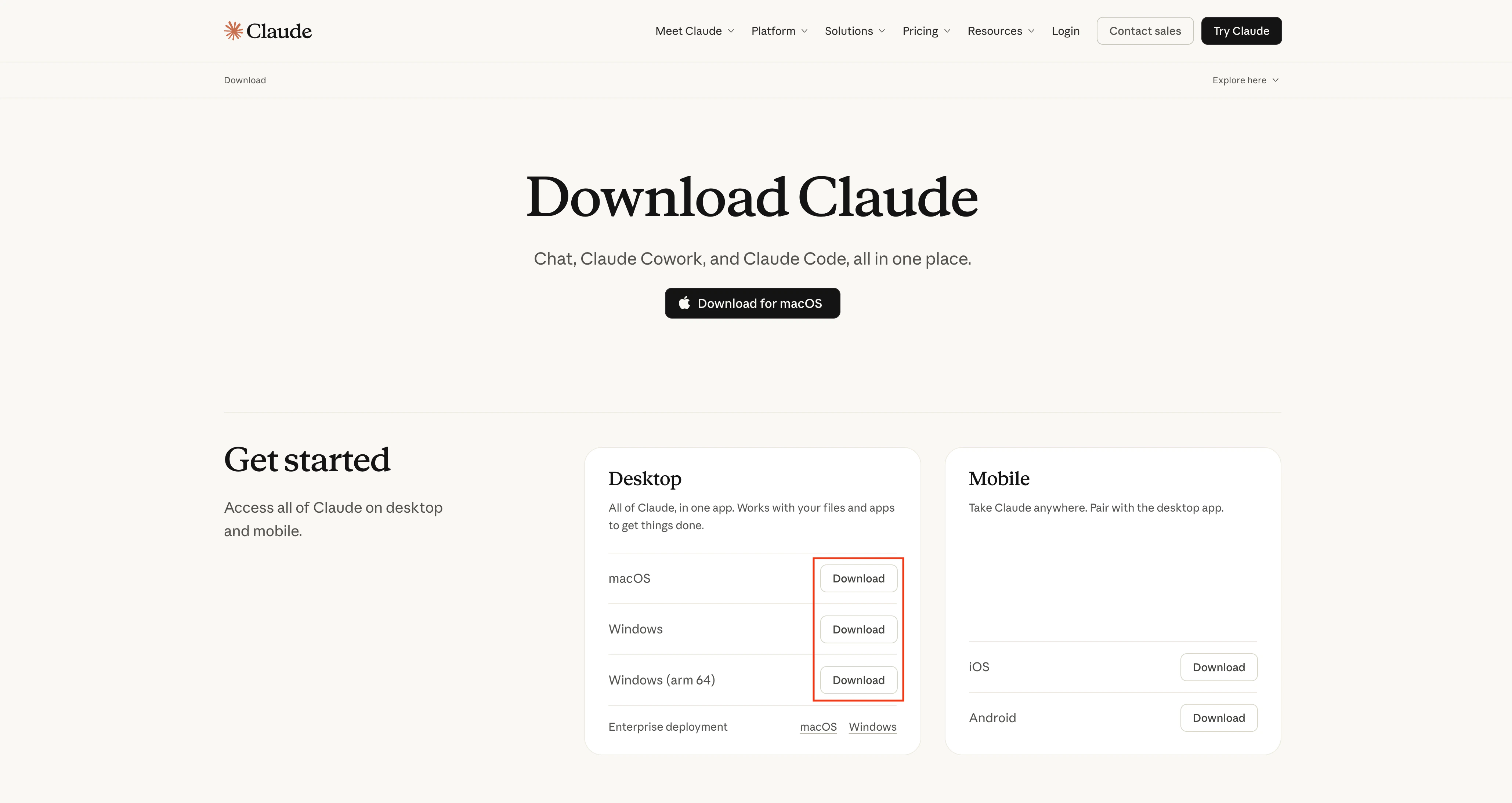
After installation
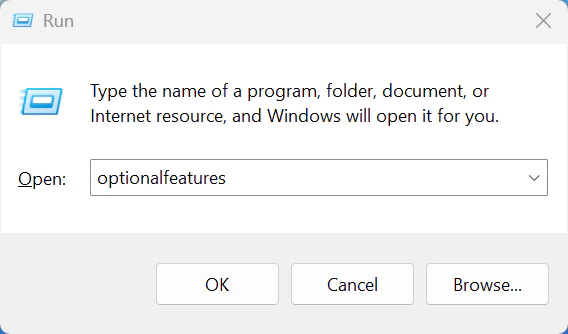
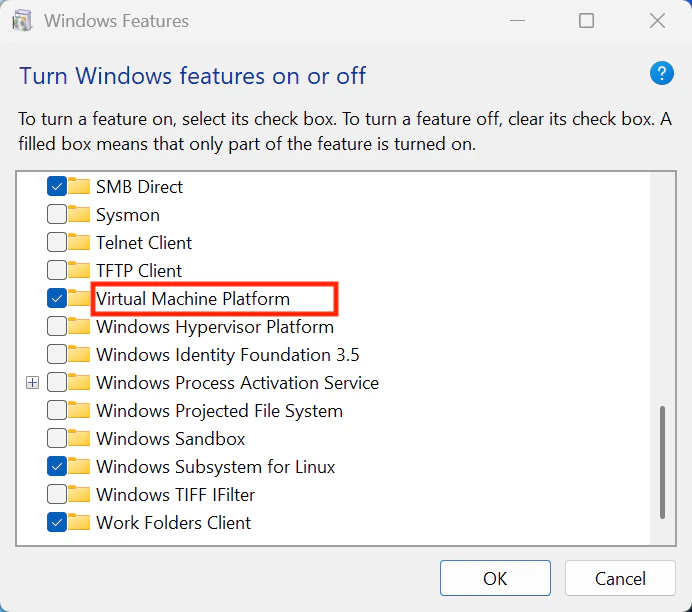
After installation, confirm that Claude Desktop starts normally.Step 2: Enable Developer Mode
- macOS
- Windows
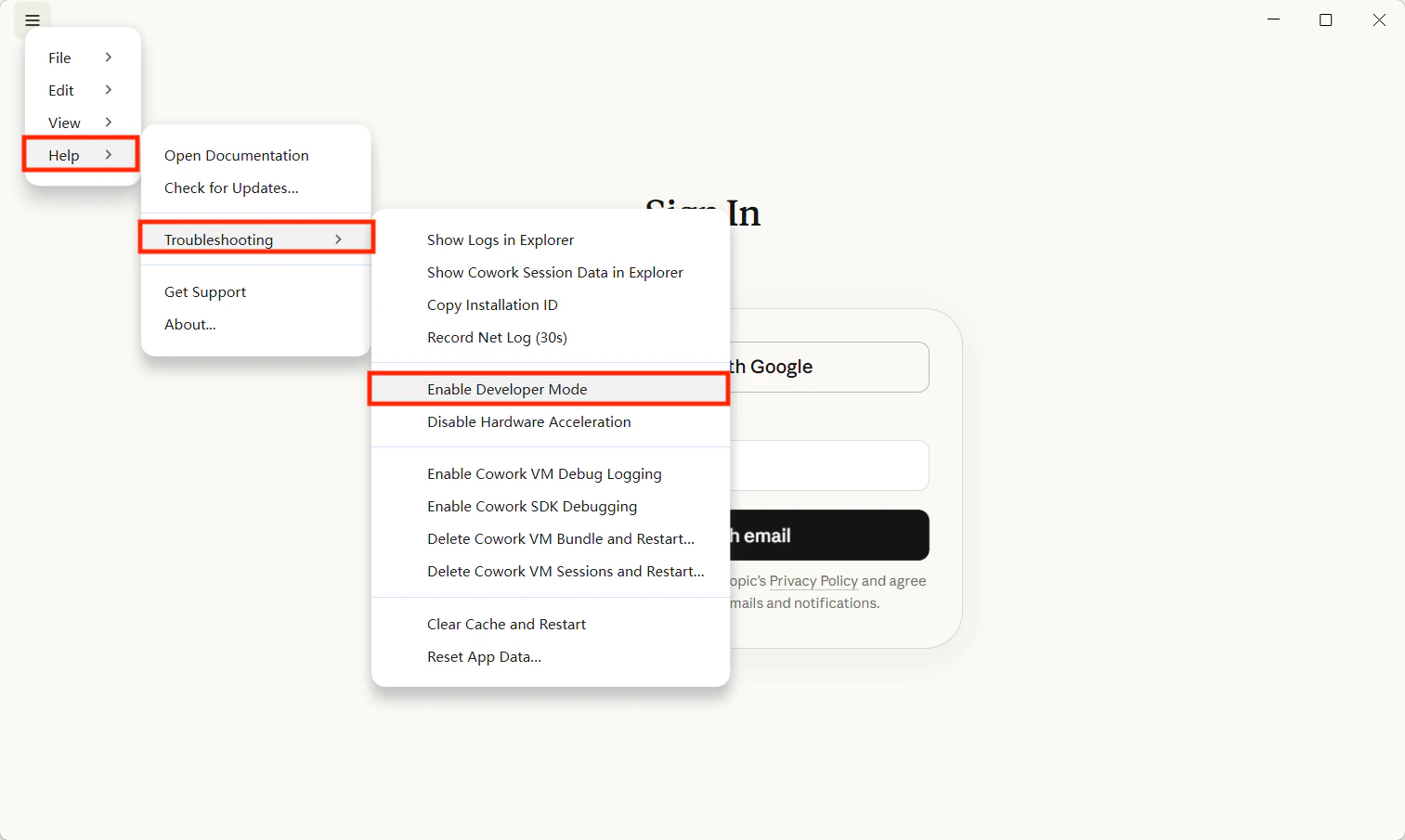
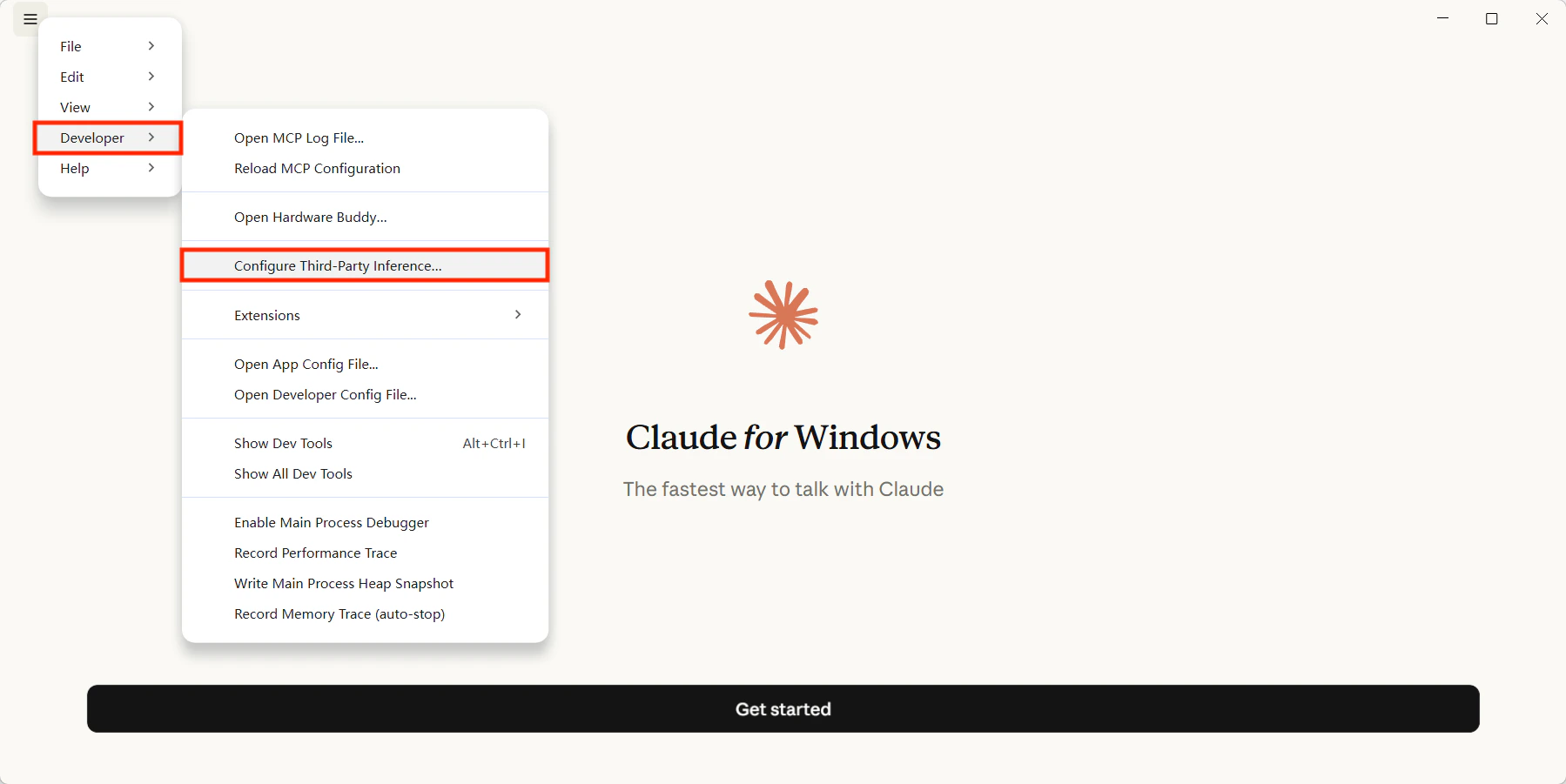
After launching Claude Desktop, click Help → Troubleshooting and enable Developer Mode in the dialog.Once enabled, a Developer menu entry appears for third-party inference configuration.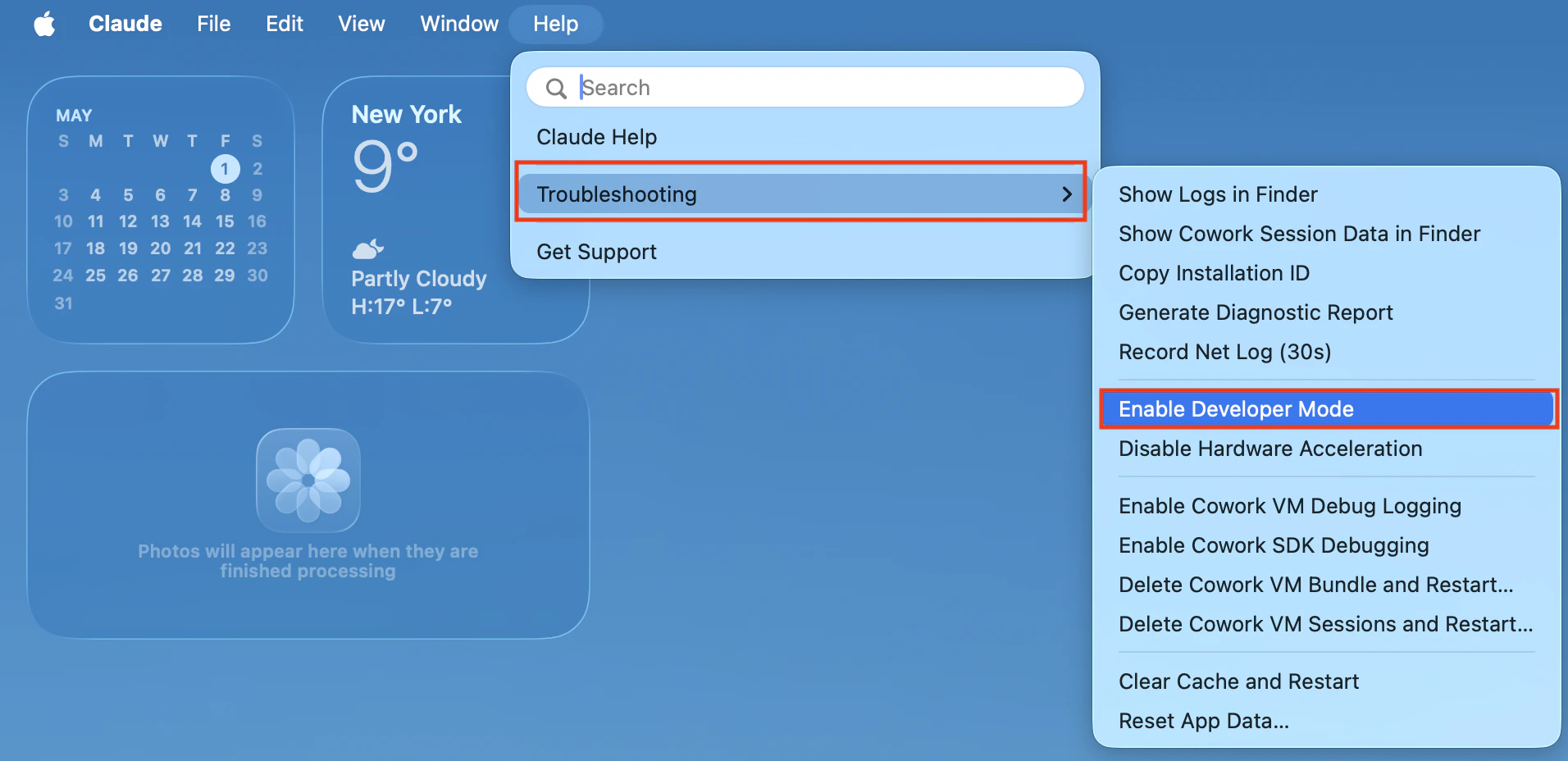
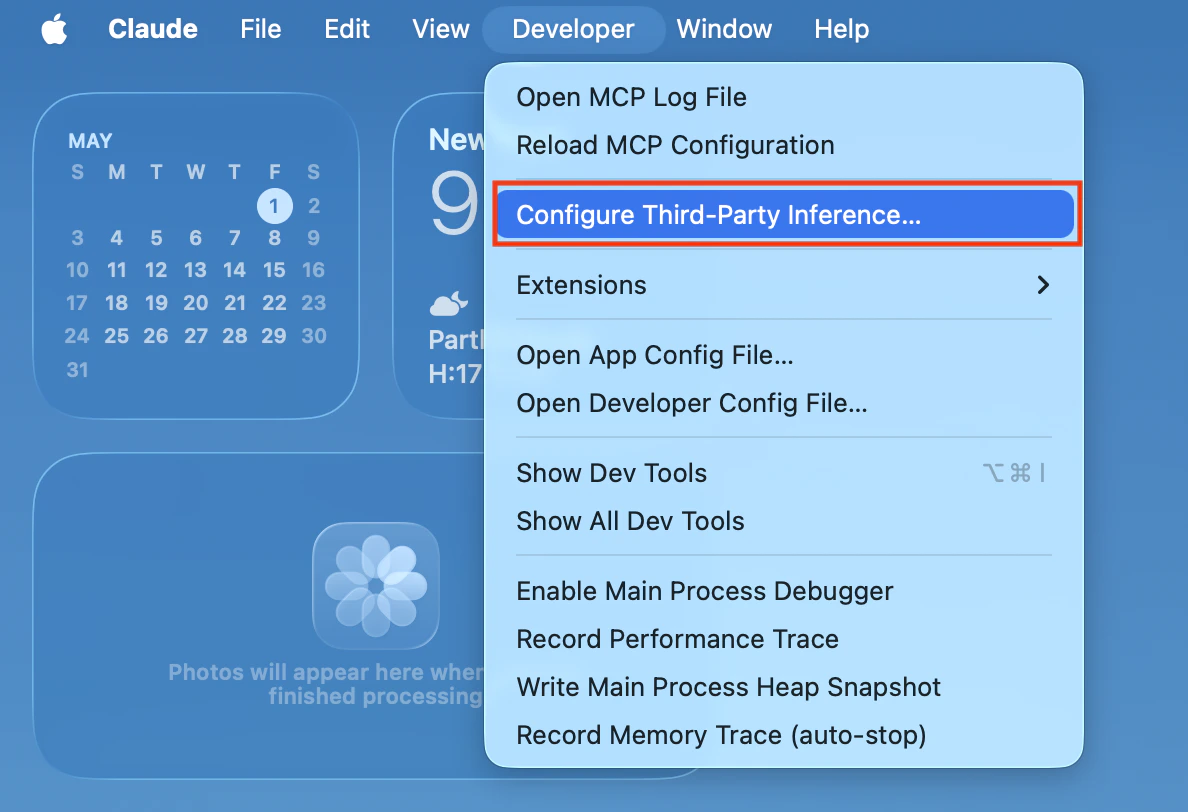
Tip: If you do not see the Developer entry, confirm that your Claude Desktop version supports Developer Mode and third-party inference settings.
Step 3: Open Third-Party Inference Settings
In the Developer menu, open the third-party inference panel and fill it in as shown below:Note: If the field names in your Claude Desktop version are slightly different, use the actual interface labels, but keep the meaning the same.
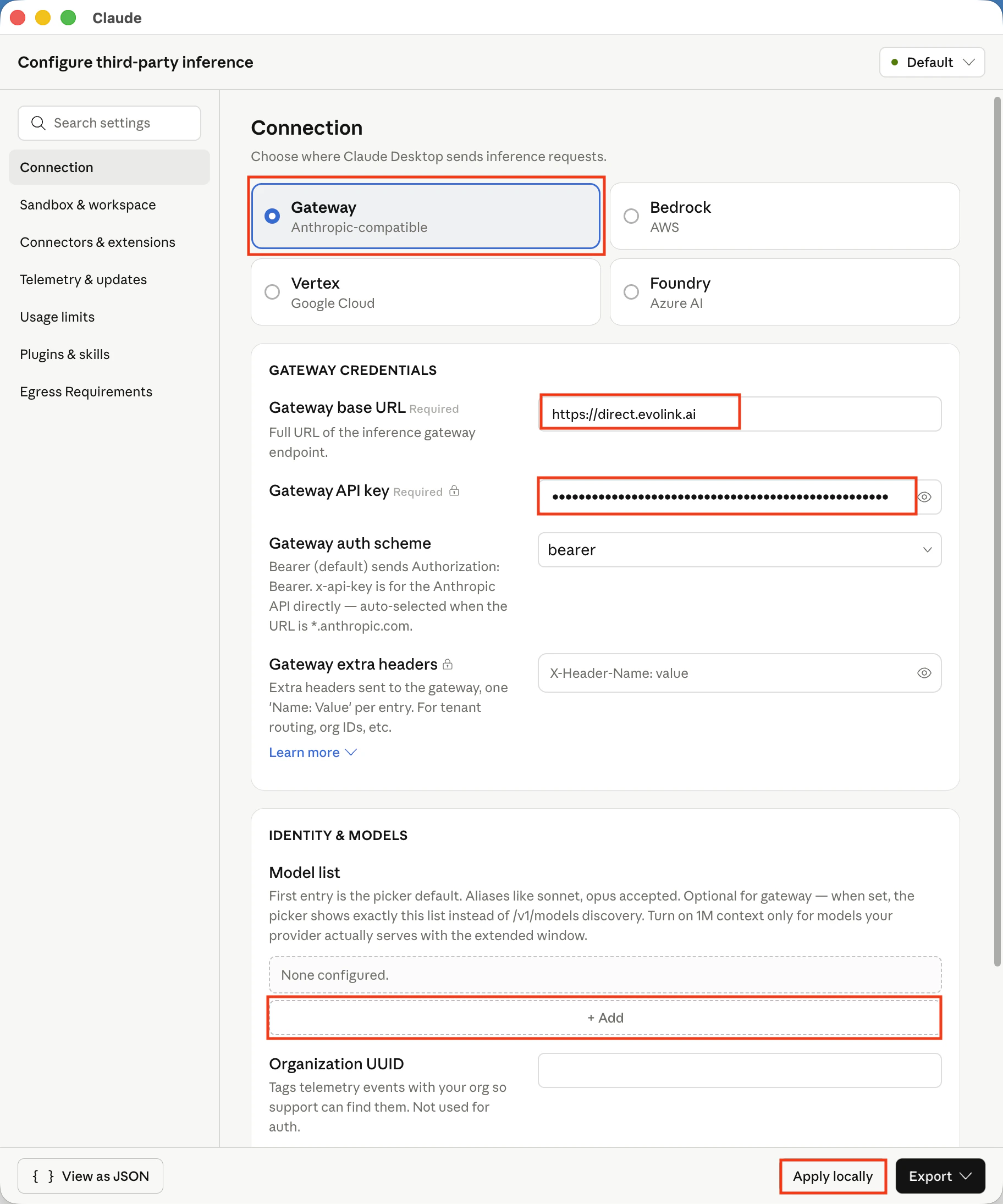
Step 4: Save and Restart
After saving the configuration, fully quit Claude Desktop, then launch it again.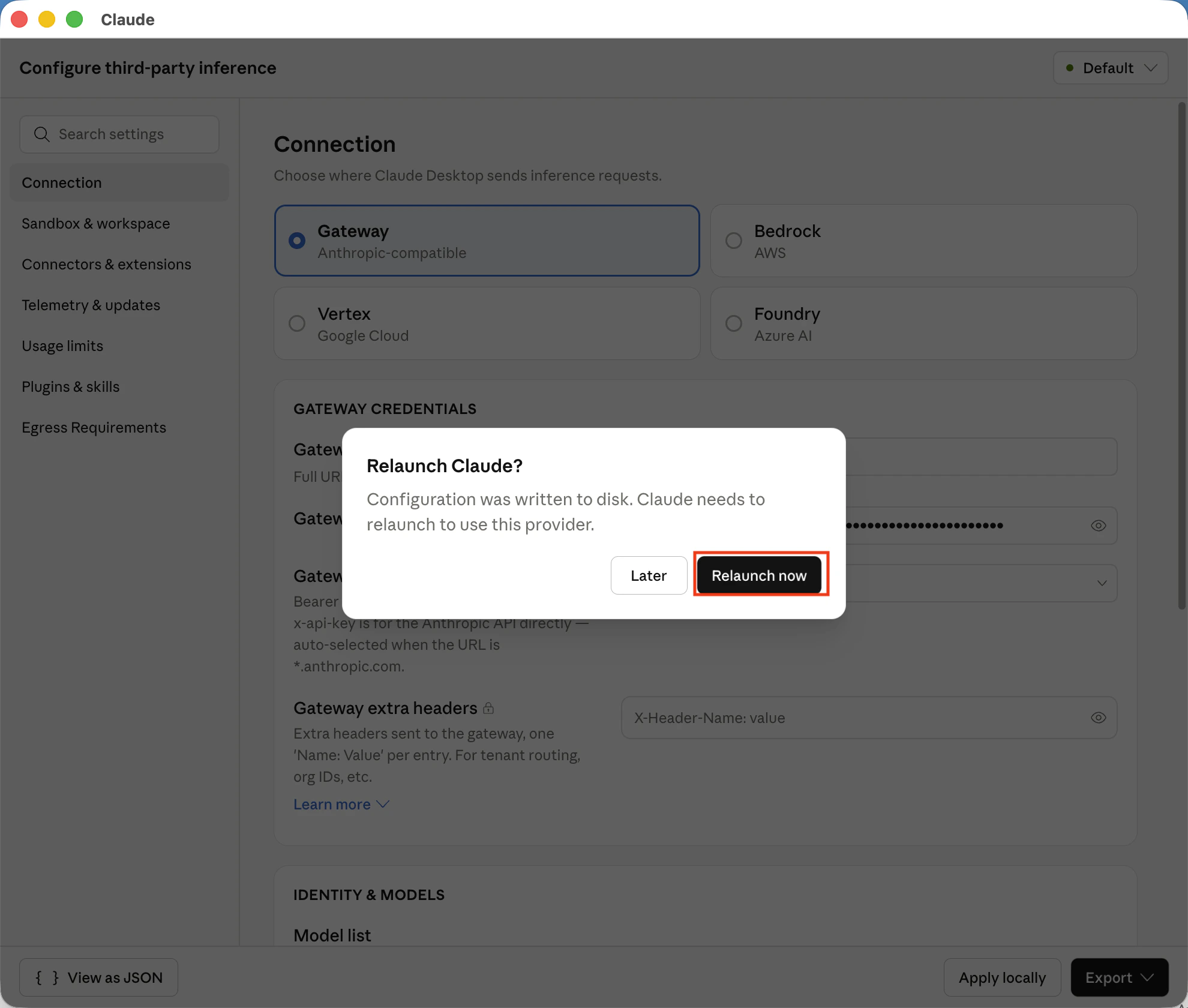
Step 5: Choose a Model
After restarting, check the model selector to confirm that the available models appear correctly.How It Works
Claude Desktop communicates with EvoLink through an Anthropic-compatible gateway:- Claude Desktop sends requests to the gateway address you configured.
- EvoLink receives the request and forwards it to the corresponding model service.
- After the response returns, Claude Desktop continues showing the conversation locally.
Supported Models
If you want to restrict the visible models inModel list, you can use the following model IDs.
FAQ
Developer menu does not appear
Confirm that Developer Mode is enabled and that Claude Desktop has been fully restarted.I cannot connect after configuring it
Check the following:- Whether the base URL is correct
- Whether the API key is valid
- Whether the authentication scheme is
bearer - Whether Claude Desktop has been fully closed and reopened