> ## Documentation Index
> Fetch the complete documentation index at: https://evolink.ai/docs/llms.txt
> Use this file to discover all available pages before exploring further.
# ComfyUI
> Use EvoLink image generation (text-to-image / image-to-image) inside ComfyUI — no local GPU required
## Overview
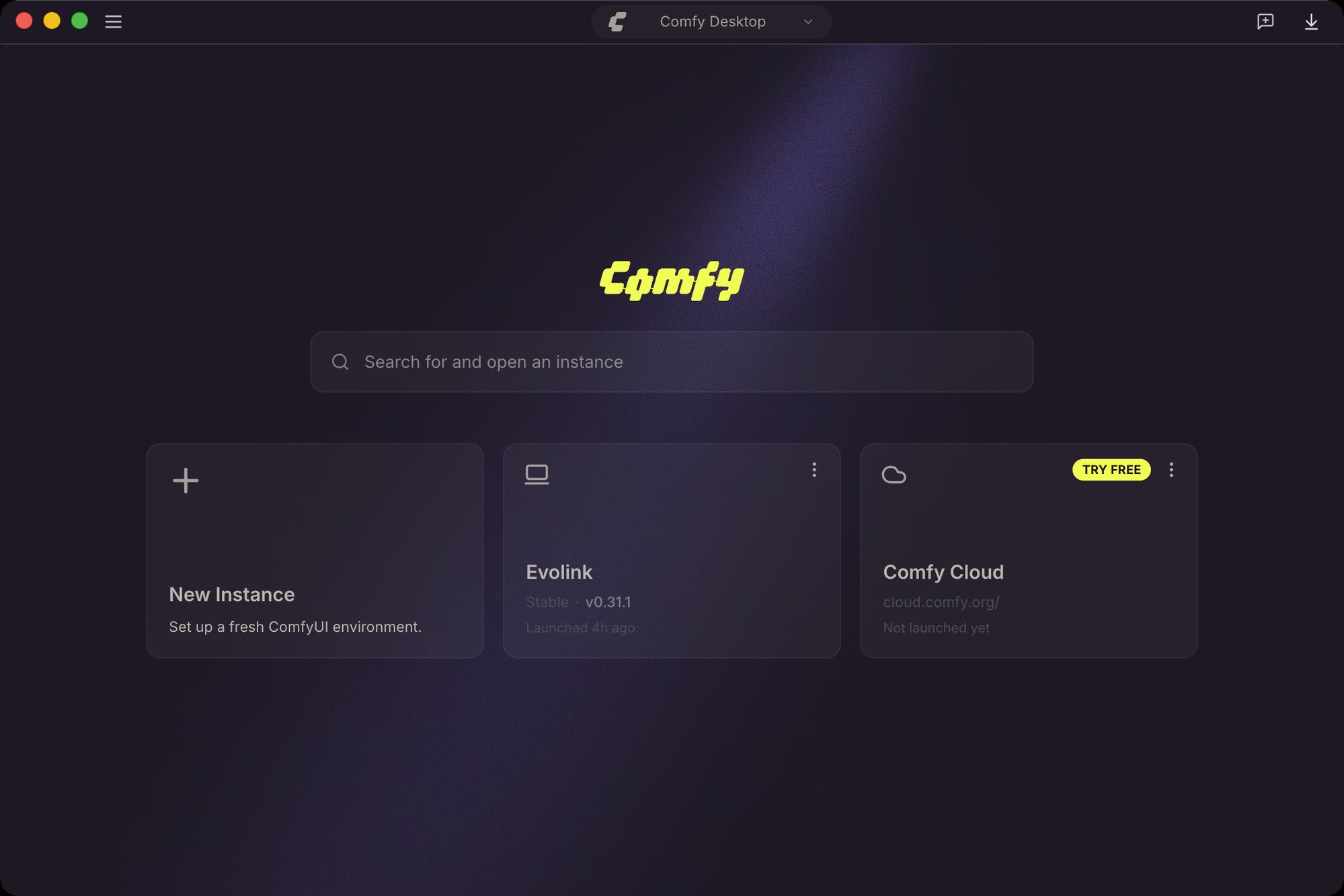 [ComfyUI](https://www.comfy.org/) is the most popular **open-source node-based tool for AI image generation**: every step — loading a model, writing a prompt, generating an image — becomes a node you wire together on a canvas, letting you build highly flexible, reusable workflows like building blocks. Free, open source, and backed by a huge plugin ecosystem, it has become a mainstream workbench for AI visual creation.
With the **official EvoLink ComfyUI plugin**, you can call the cloud-hosted `gpt-image-2` model directly from your ComfyUI workflows — both text-to-image and image-to-image, **with no local GPU required**.
[ComfyUI](https://www.comfy.org/) is the most popular **open-source node-based tool for AI image generation**: every step — loading a model, writing a prompt, generating an image — becomes a node you wire together on a canvas, letting you build highly flexible, reusable workflows like building blocks. Free, open source, and backed by a huge plugin ecosystem, it has become a mainstream workbench for AI visual creation.
With the **official EvoLink ComfyUI plugin**, you can call the cloud-hosted `gpt-image-2` model directly from your ComfyUI workflows — both text-to-image and image-to-image, **with no local GPU required**.
 **Works with**: ComfyUI Desktop, portable builds, manual installs, and the Chinese "aki" all-in-one package.
## Before you start
### Get an EvoLink API key
1. Log in to the [EvoLink dashboard](https://evolink.ai/dashboard)
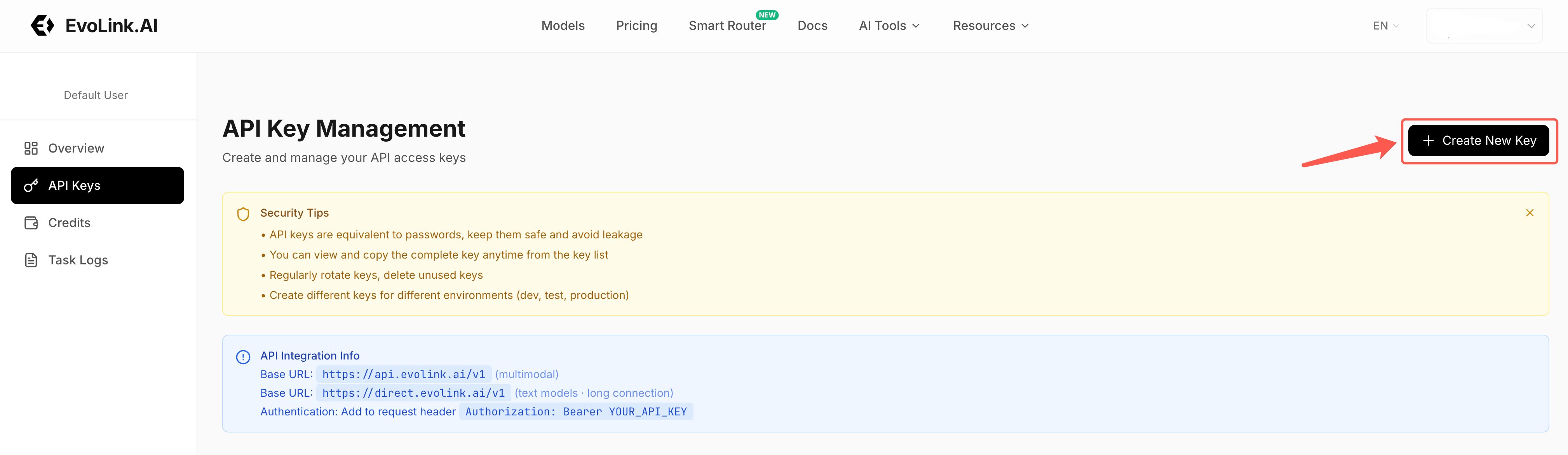
2. Open the [API Keys page](https://evolink.ai/dashboard/keys), create a key and copy it (starts with `sk-`)
**Works with**: ComfyUI Desktop, portable builds, manual installs, and the Chinese "aki" all-in-one package.
## Before you start
### Get an EvoLink API key
1. Log in to the [EvoLink dashboard](https://evolink.ai/dashboard)
2. Open the [API Keys page](https://evolink.ai/dashboard/keys), create a key and copy it (starts with `sk-`)
 **Your API key is the key to your account balance.** Keep it in your local node config only — never paste it into chats, screenshots, or public repos. If you suspect a leak, delete and recreate the key immediately.
### Make sure you have credits
Generation consumes credits. Check your balance on the [dashboard](https://evolink.ai/dashboard); per-task usage is listed in the [task logs](https://evolink.ai/dashboard/logs).
## Step 1: Install the official plugin
1. Open ComfyUI Desktop → click **Manager** in the top toolbar to open the node manager
2. Search **`evolink`** → pick the **EvoLink** entry whose Created By is **evolink** → click **Install**
3. Restart ComfyUI when prompted
**Your API key is the key to your account balance.** Keep it in your local node config only — never paste it into chats, screenshots, or public repos. If you suspect a leak, delete and recreate the key immediately.
### Make sure you have credits
Generation consumes credits. Check your balance on the [dashboard](https://evolink.ai/dashboard); per-task usage is listed in the [task logs](https://evolink.ai/dashboard/logs).
## Step 1: Install the official plugin
1. Open ComfyUI Desktop → click **Manager** in the top toolbar to open the node manager
2. Search **`evolink`** → pick the **EvoLink** entry whose Created By is **evolink** → click **Install**
3. Restart ComfyUI when prompted
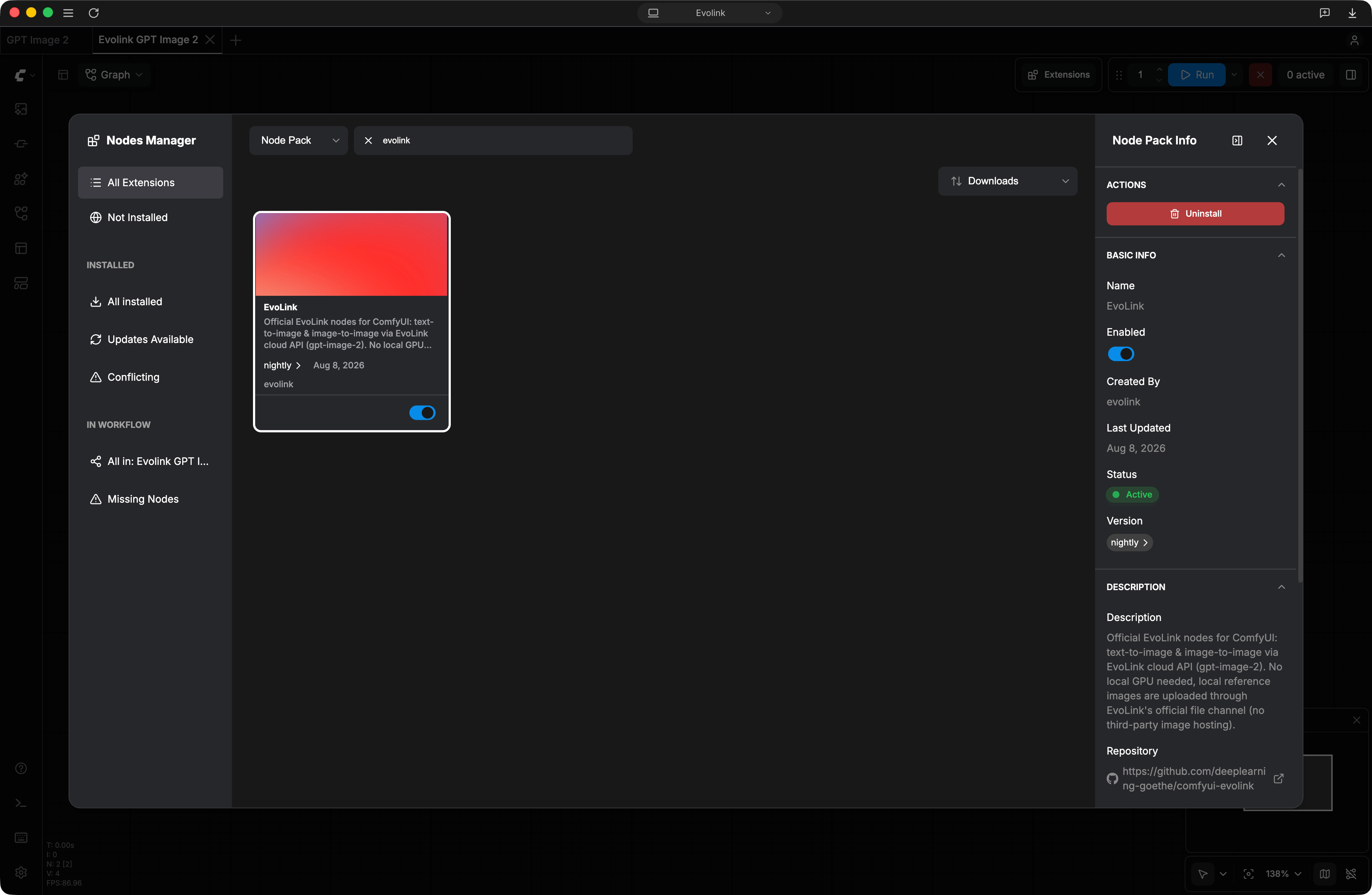 Listed on the official ComfyUI Registry ([registry.comfy.org/nodes/evolink-nodes](https://registry.comfy.org/nodes/evolink-nodes)) — searchable from the Manager in Desktop, browser builds, and packaged distributions.
1. Start ComfyUI from the launcher, then in the browser click **Manager** in the top toolbar → **Custom Nodes Manager**
Listed on the official ComfyUI Registry ([registry.comfy.org/nodes/evolink-nodes](https://registry.comfy.org/nodes/evolink-nodes)) — searchable from the Manager in Desktop, browser builds, and packaged distributions.
1. Start ComfyUI from the launcher, then in the browser click **Manager** in the top toolbar → **Custom Nodes Manager**
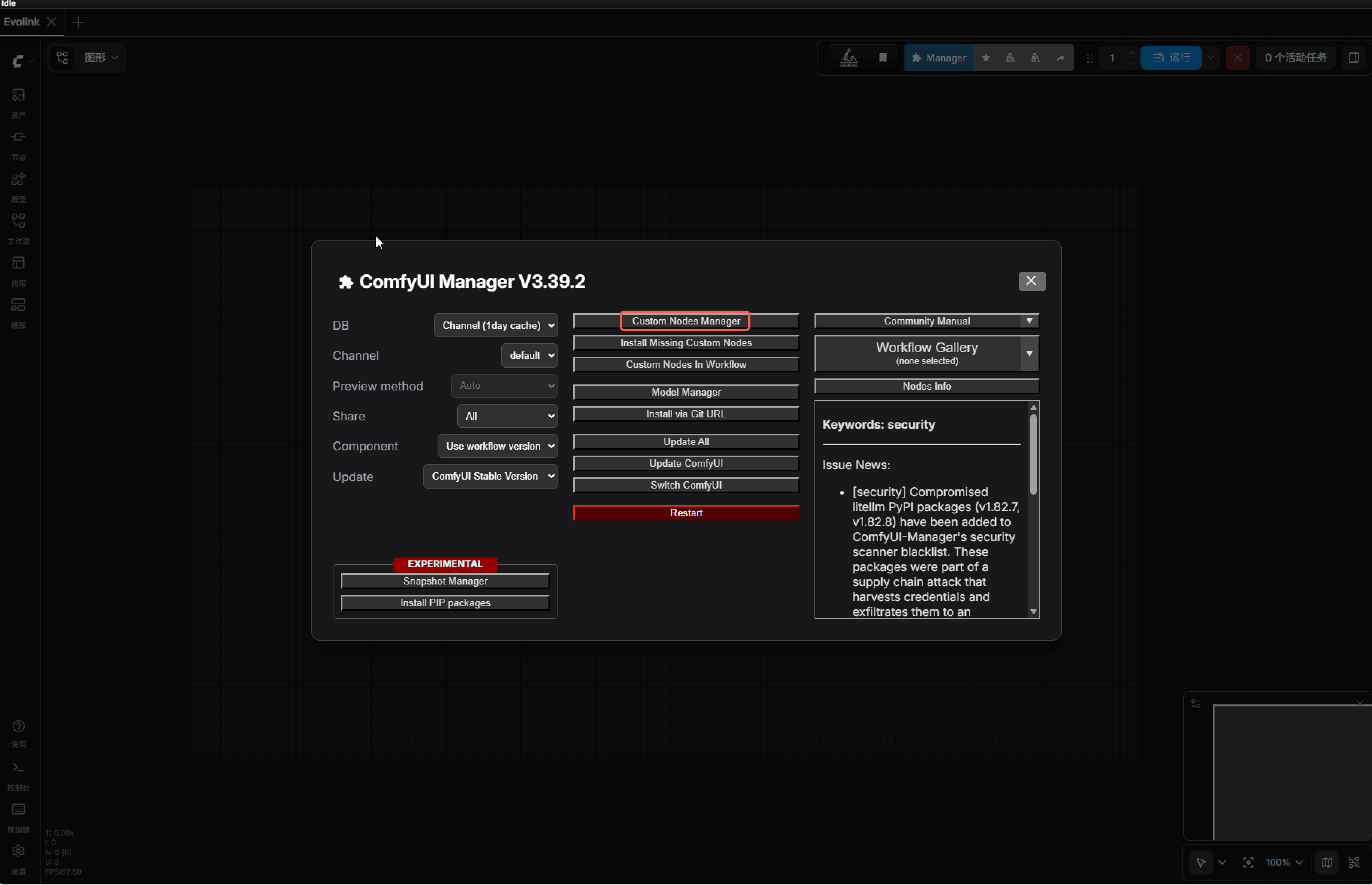 2. Type **`evolink`** in the search box → pick the **EvoLink** entry whose Author is **evolink** → click **Install**
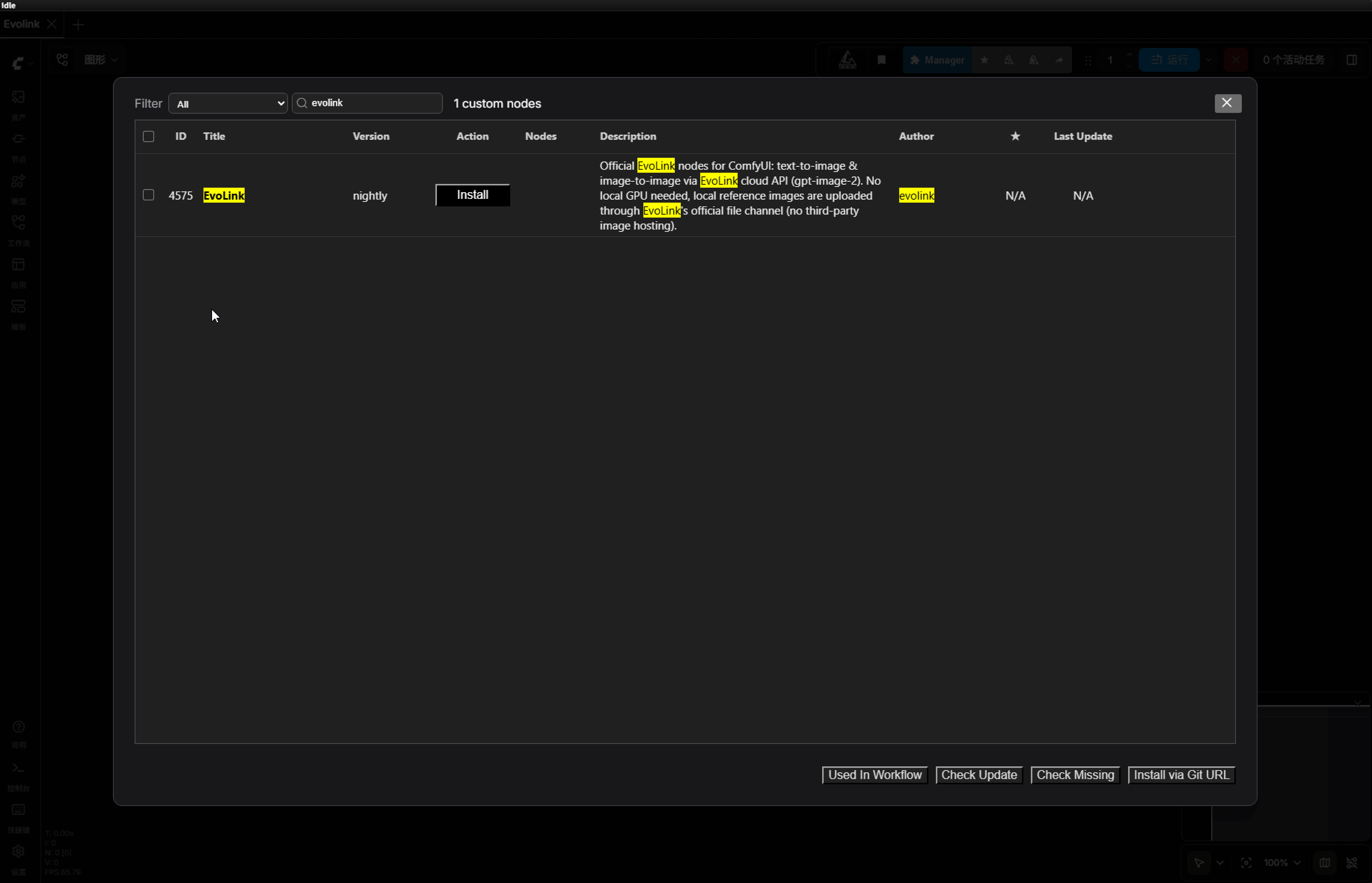 3. When the Action column shows **Restart Required**, the install succeeded → terminate and relaunch from the launcher → **refresh the browser**
If a `Neither 'pip' nor 'uv' are available for package management` error pops up during install, **you can ignore it**: this plugin's only dependency is `requests`, which the package already bundles. As long as the Action column says **Restart Required**, the install worked.
Inside `ComfyUI/custom_nodes`, run:
```bash theme={null}
git clone https://github.com/deeplearning-goethe/comfyui-evolink.git
```
aki all-in-one package users: `custom_nodes` lives inside your `ComfyUI-aki-vX.X` install folder; run the command from the launcher's terminal, or open PowerShell in that directory.
1. Open the [plugin repo](https://github.com/deeplearning-goethe/comfyui-evolink) → green **Code** button → **Download ZIP**, unzip
2. Move the folder into `ComfyUI/custom_nodes/`
3. **Nesting check (important)**: opening `custom_nodes/comfyui-evolink/` should show `__init__.py` directly. If you see another same-named folder inside (a common unzip issue), move the inner folder up and delete the empty shell.
A correct layout looks like:
```
ComfyUI-aki-v3.7\
└─ custom_nodes\
├─ ComfyUI-Manager\
└─ comfyui-evolink\
├─ __init__.py
└─ ...other files
```
The only dependency is `requests` (usually bundled with ComfyUI already).
3. When the Action column shows **Restart Required**, the install succeeded → terminate and relaunch from the launcher → **refresh the browser**
If a `Neither 'pip' nor 'uv' are available for package management` error pops up during install, **you can ignore it**: this plugin's only dependency is `requests`, which the package already bundles. As long as the Action column says **Restart Required**, the install worked.
Inside `ComfyUI/custom_nodes`, run:
```bash theme={null}
git clone https://github.com/deeplearning-goethe/comfyui-evolink.git
```
aki all-in-one package users: `custom_nodes` lives inside your `ComfyUI-aki-vX.X` install folder; run the command from the launcher's terminal, or open PowerShell in that directory.
1. Open the [plugin repo](https://github.com/deeplearning-goethe/comfyui-evolink) → green **Code** button → **Download ZIP**, unzip
2. Move the folder into `ComfyUI/custom_nodes/`
3. **Nesting check (important)**: opening `custom_nodes/comfyui-evolink/` should show `__init__.py` directly. If you see another same-named folder inside (a common unzip issue), move the inner folder up and delete the empty shell.
A correct layout looks like:
```
ComfyUI-aki-v3.7\
└─ custom_nodes\
├─ ComfyUI-Manager\
└─ comfyui-evolink\
├─ __init__.py
└─ ...other files
```
The only dependency is `requests` (usually bundled with ComfyUI already).
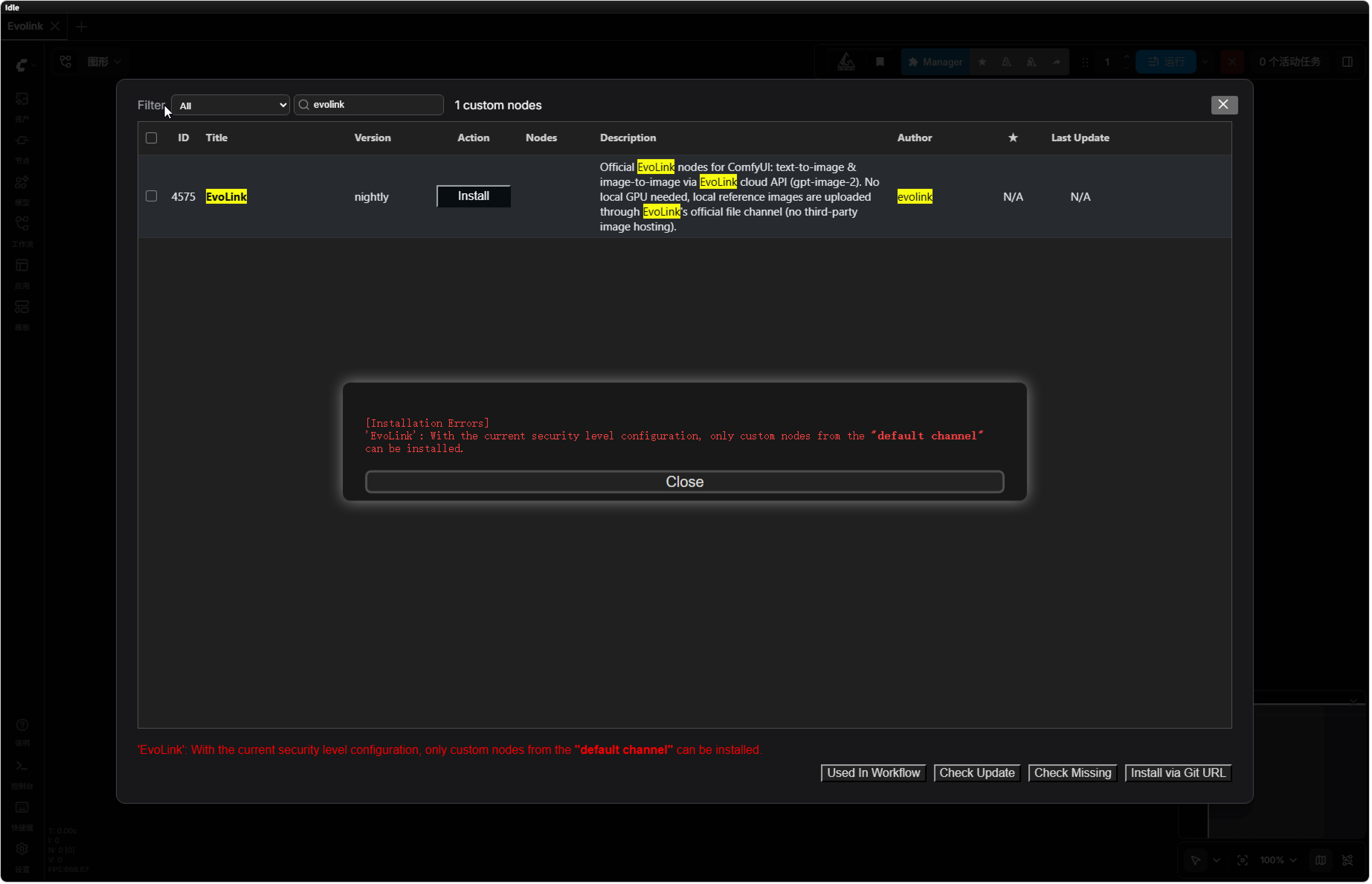 This happens because the plugin's versions are undergoing the ComfyUI registry's security review (a common process for cloud-API nodes), and the Manager's default security level blocks installs in the meantime. You can **temporarily lower the Manager security level** — and restore it afterwards:
**Step 1: Fully close ComfyUI**
* aki all-in-one package: launcher → **Terminate process**
* Official Desktop / portable / manual installs: quit the app completely, including the console window
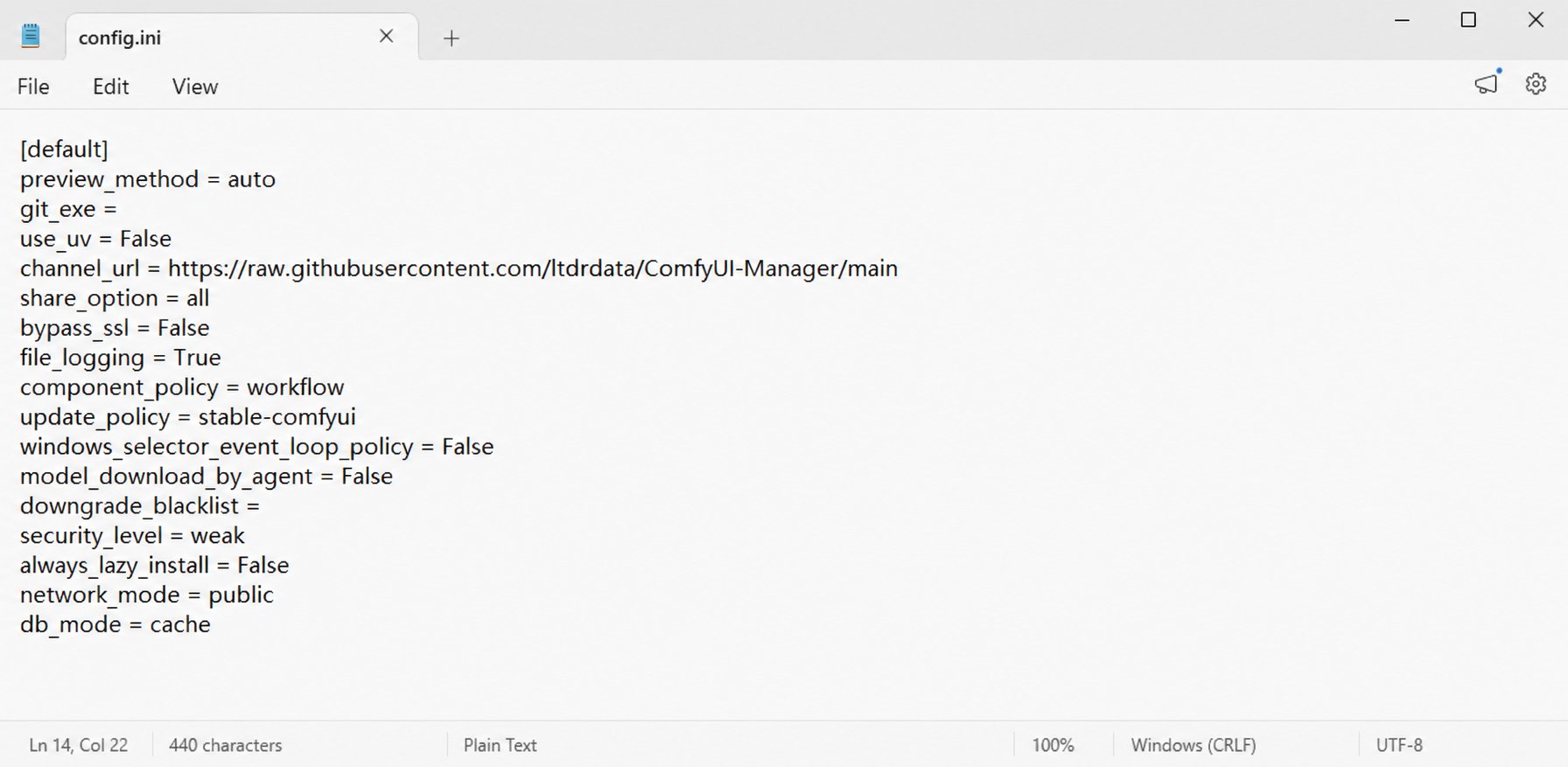
**Step 2: Edit the Manager config file `config.ini`**
Find it per your install type (or just search for `config.ini` inside your ComfyUI folder and pick the one whose path contains `manager`):
| Environment | config.ini location |
| -------------------------------------- | ---------------------------------------------------------------------------------------- |
| aki all-in-one package | `your-download-path\ComfyUI-aki-vX.X\ComfyUI-aki-vX.X\ComfyUI\user\__manager\config.ini` |
| Official (Desktop / portable / manual) | `ComfyUI install dir\user\default\ComfyUI-Manager\config.ini` |
Open it in Notepad, find the `security_level` line and change `normal` to `weak`:
```ini theme={null}
security_level = weak
```
Save and close.
This happens because the plugin's versions are undergoing the ComfyUI registry's security review (a common process for cloud-API nodes), and the Manager's default security level blocks installs in the meantime. You can **temporarily lower the Manager security level** — and restore it afterwards:
**Step 1: Fully close ComfyUI**
* aki all-in-one package: launcher → **Terminate process**
* Official Desktop / portable / manual installs: quit the app completely, including the console window
**Step 2: Edit the Manager config file `config.ini`**
Find it per your install type (or just search for `config.ini` inside your ComfyUI folder and pick the one whose path contains `manager`):
| Environment | config.ini location |
| -------------------------------------- | ---------------------------------------------------------------------------------------- |
| aki all-in-one package | `your-download-path\ComfyUI-aki-vX.X\ComfyUI-aki-vX.X\ComfyUI\user\__manager\config.ini` |
| Official (Desktop / portable / manual) | `ComfyUI install dir\user\default\ComfyUI-Manager\config.ini` |
Open it in Notepad, find the `security_level` line and change `normal` to `weak`:
```ini theme={null}
security_level = weak
```
Save and close.
 **Step 3: Restart ComfyUI and install again**
Start ComfyUI → Manager → search `evolink` → **Install**. Ignore the `Neither 'pip' nor 'uv'...` message if it appears. Once you see **Restart Required**, fully restart once more and refresh the browser.
**Step 4: Verify, then restore the security level**
* Confirm the nodes load per [Verify the install](#verify-the-install) below
* ⚠️ **Change `security_level` back to `normal` after installing** (repeat steps 1–2) to restore the Manager's default protection
### Verify the install
After a full restart and a browser refresh, **double-click** the empty canvas → search `evolink`. If you see both **EvoLink GPT Image 2 (Official)** and **EvoLink Upload Image (Official)**, the install succeeded:
**Step 3: Restart ComfyUI and install again**
Start ComfyUI → Manager → search `evolink` → **Install**. Ignore the `Neither 'pip' nor 'uv'...` message if it appears. Once you see **Restart Required**, fully restart once more and refresh the browser.
**Step 4: Verify, then restore the security level**
* Confirm the nodes load per [Verify the install](#verify-the-install) below
* ⚠️ **Change `security_level` back to `normal` after installing** (repeat steps 1–2) to restore the Manager's default protection
### Verify the install
After a full restart and a browser refresh, **double-click** the empty canvas → search `evolink`. If you see both **EvoLink GPT Image 2 (Official)** and **EvoLink Upload Image (Official)**, the install succeeded:
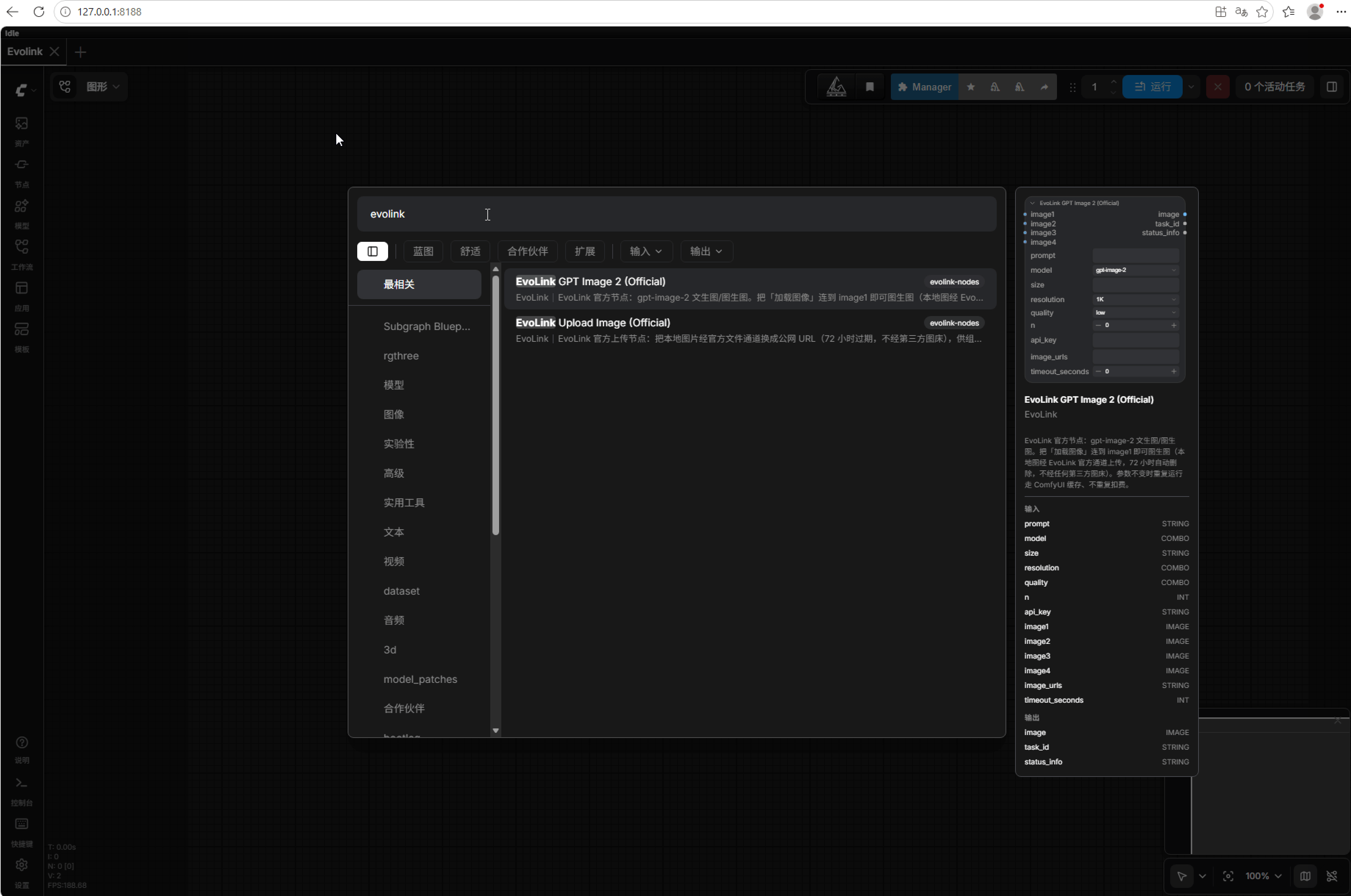 Nodes missing? Make sure you did a **full restart** (not just a browser refresh); otherwise see the [FAQ](#faq).
## Step 2: Your first image (text-to-image, 5 minutes)
1. **Double-click** the empty canvas (or right-click → Add Node) → search **`EvoLink`** → add **EvoLink GPT Image 2 (Official)**
2. Fill in:
* `api_key`: paste your `sk-` key. **First time only** — it is saved to a local config file after the first run; leave the field empty afterwards (and clear it before sharing workflows)
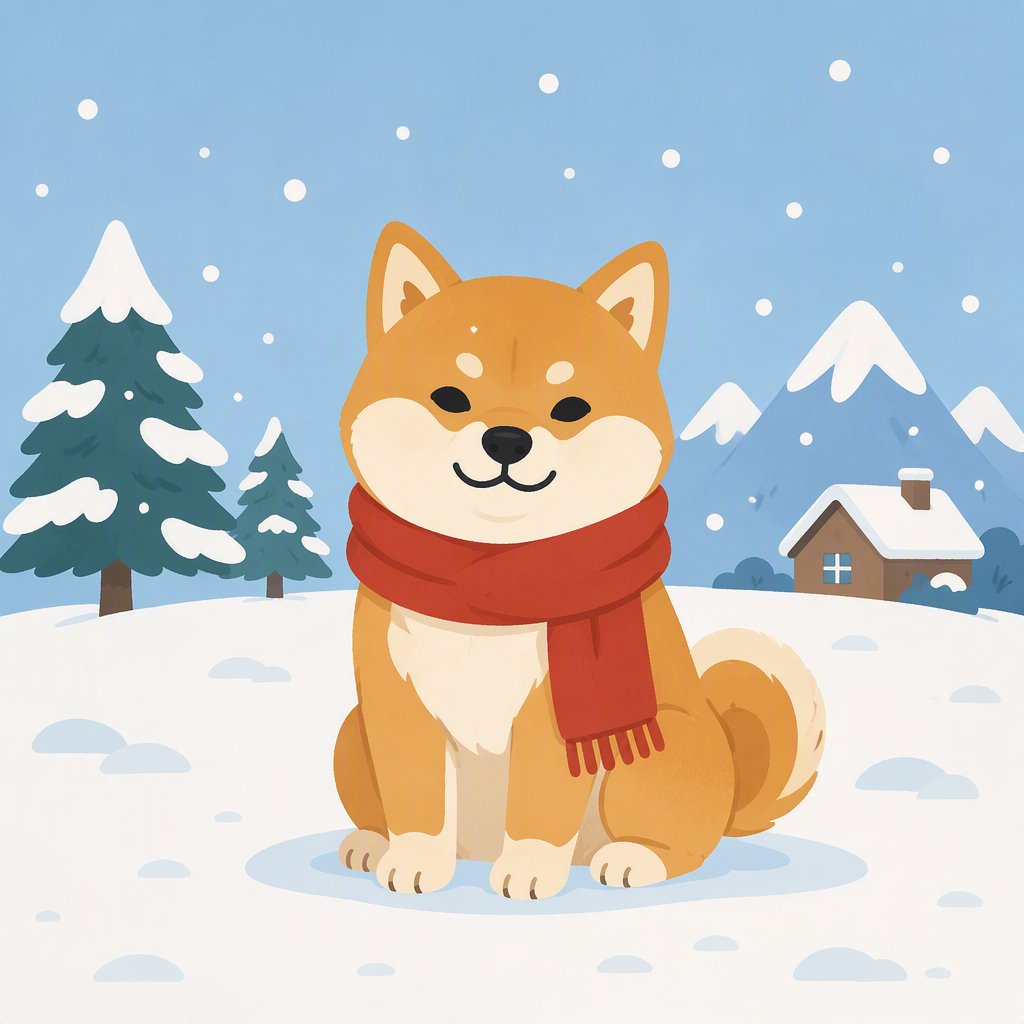
* `prompt`: your description, e.g. `a shiba inu wearing a red scarf sitting in the snow, flat illustration`
* Keep the other defaults (`quality=low` is the cheapest for testing)
3. **Connect a display node (required)**: drag from the `image` output dot to empty canvas and pick **Preview Image**; add a **Save Image** node too if you want files written to ComfyUI's `output` folder
**The most common beginner mistake**: the EvoLink node generates but does not display. If the `image` output isn't connected to anything, the task finishes and you see no picture.
Nodes missing? Make sure you did a **full restart** (not just a browser refresh); otherwise see the [FAQ](#faq).
## Step 2: Your first image (text-to-image, 5 minutes)
1. **Double-click** the empty canvas (or right-click → Add Node) → search **`EvoLink`** → add **EvoLink GPT Image 2 (Official)**
2. Fill in:
* `api_key`: paste your `sk-` key. **First time only** — it is saved to a local config file after the first run; leave the field empty afterwards (and clear it before sharing workflows)
* `prompt`: your description, e.g. `a shiba inu wearing a red scarf sitting in the snow, flat illustration`
* Keep the other defaults (`quality=low` is the cheapest for testing)
3. **Connect a display node (required)**: drag from the `image` output dot to empty canvas and pick **Preview Image**; add a **Save Image** node too if you want files written to ComfyUI's `output` folder
**The most common beginner mistake**: the EvoLink node generates but does not display. If the `image` output isn't connected to anything, the task finishes and you see no picture.
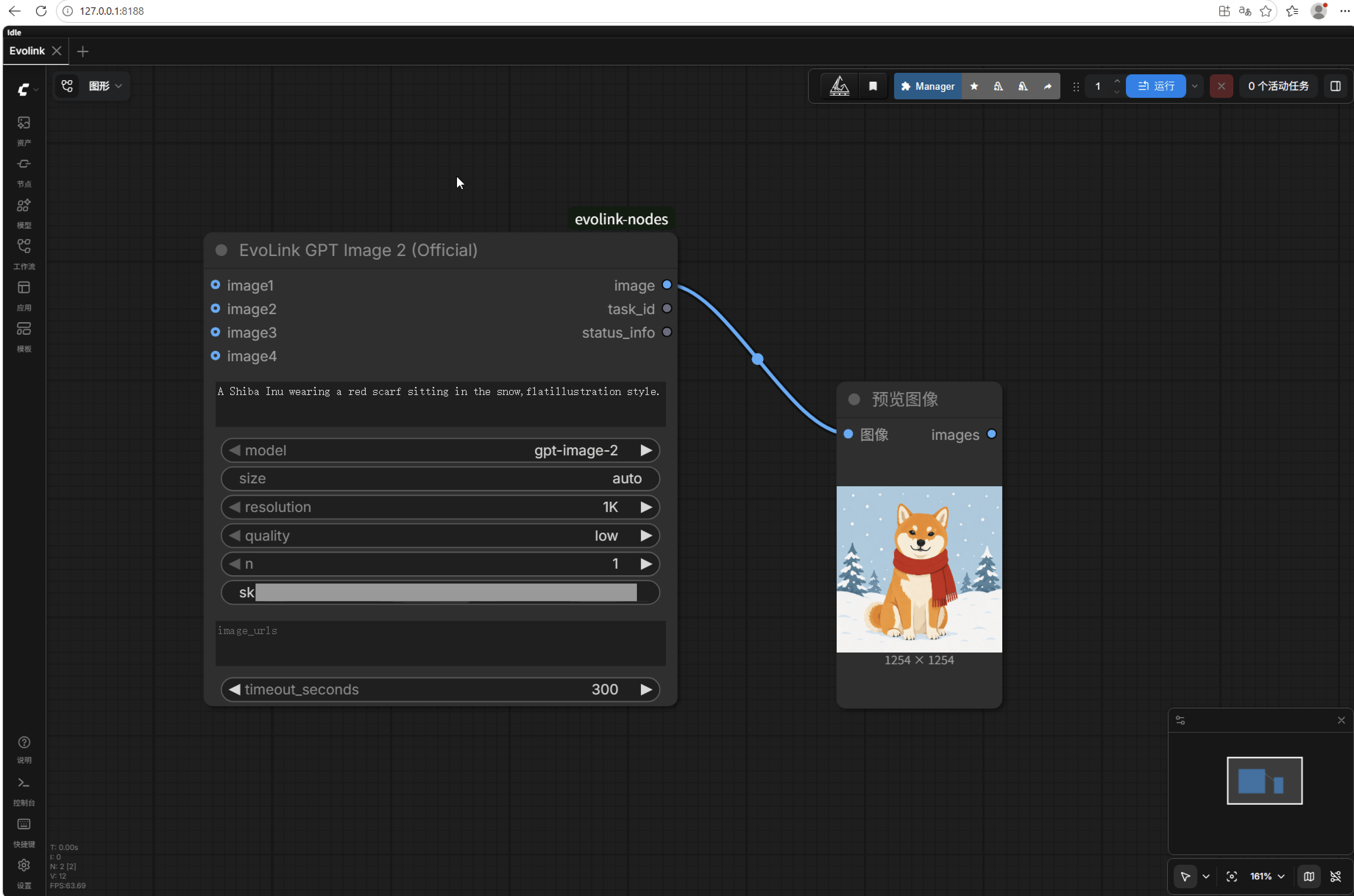 4. Hit **Queue Prompt**. The node submits the task, polls with a live progress bar, and fetches the result, shown right in the Preview node.
## Step 3: Image-to-image (3 steps)
1. Add a **Load Image** node and pick your local picture
2. Connect its image output to the EvoLink node's **`image1`** socket
3. Describe the edit in `prompt` → run
4. Hit **Queue Prompt**. The node submits the task, polls with a live progress bar, and fetches the result, shown right in the Preview node.
## Step 3: Image-to-image (3 steps)
1. Add a **Load Image** node and pick your local picture
2. Connect its image output to the EvoLink node's **`image1`** socket
3. Describe the edit in `prompt` → run
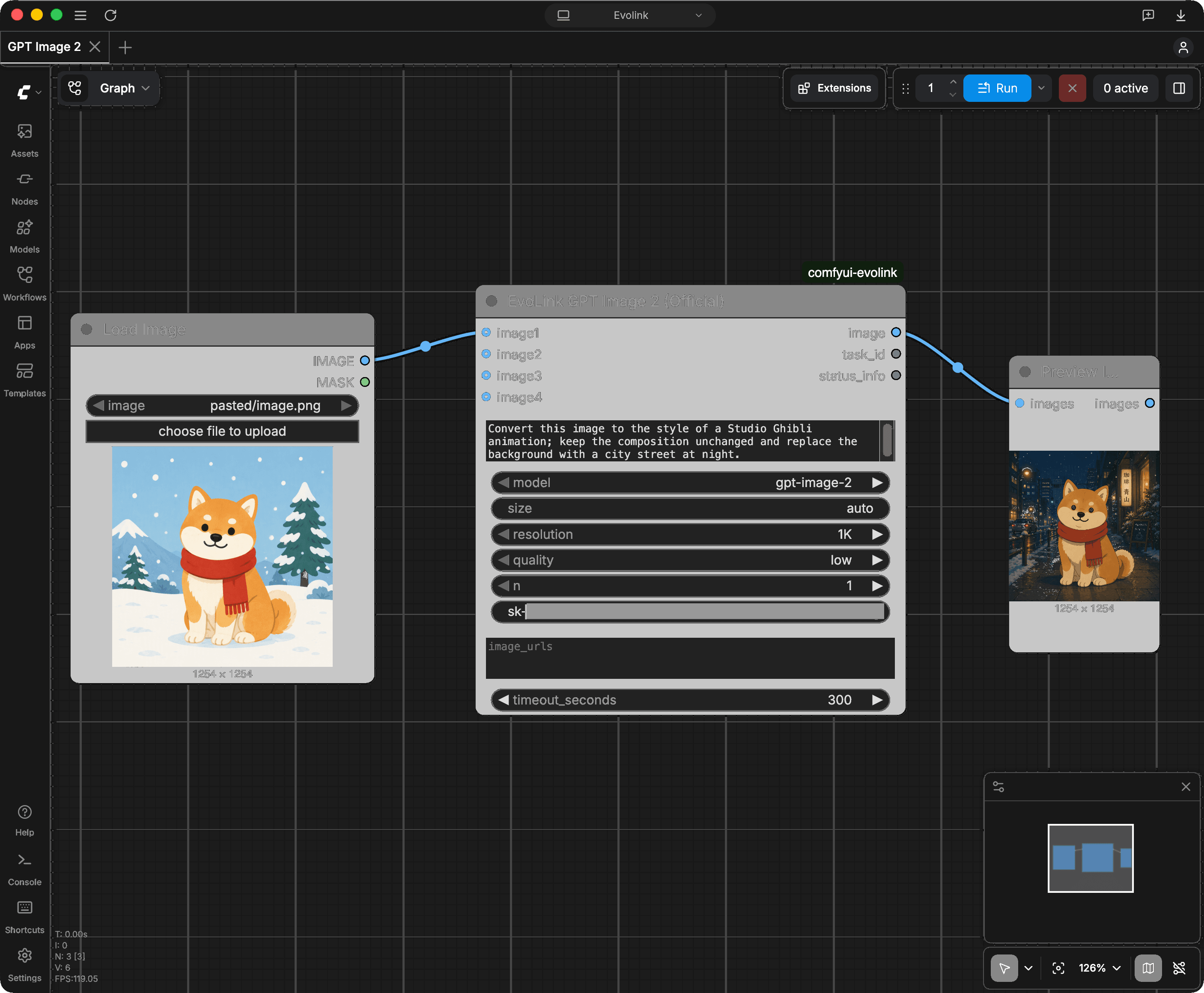 Your image is uploaded automatically through **EvoLink's official file channel** for a temporary URL (**auto-deleted after 72 hours**) — no third-party image host involved, nothing extra to register.
**Advanced**:
* **Multiple references**: sockets `image1`–`image4` plus the `image_urls` text box (one public URL per line) can be mixed — up to **16 images** total
* **Complex workflows**: the bundled **EvoLink Upload Image (Official)** node converts local images to URL text (not needed for regular img2img)
* **Ready-made workflows**: [example\_workflows](https://github.com/deeplearning-goethe/comfyui-evolink/tree/main/example_workflows) ships text2img / img2img / multi-reference examples. **Each example's result PNG has the full workflow embedded — download the image and drag it onto the canvas to restore every node and connection** (native ComfyUI behavior); matching JSON files are also provided
## Parameters
| Parameter | Description |
| ----------------- | ---------------------------------------------------------------------------------------- |
| `prompt` | Description / edit instruction, up to 32,000 characters |
| `model` | `gpt-image-2` (default) / `gpt-image-2-beta` |
| `size` | `auto` (default) / ratio like `1:1`, `16:9` / pixels like `1024x1024` |
| `resolution` | `1K` / `2K` / `4K`, applies when size is a ratio or auto |
| `quality` | `low` / `medium` / `high` — **higher costs more**, use `low` for testing |
| `n` | Images per run (1–10) |
| `api_key` | Saved locally on first use, leave empty afterwards; `EVOLINK_API_KEY` env var also works |
| `image1`–`image4` | Reference image sockets — connect Load Image for img2img |
| `image_urls` | Advanced: one public URL per line |
| `timeout_seconds` | Max wait (default 300 s); timed-out tasks are not charged |
Outputs: `image` (result, already downloaded), `task_id` (for billing lookups & support), `status_info` (run summary: time, credits used, etc.).
## Billing & self-service checks
* **Pay-as-you-go, no subscription**: credits are reserved at submission (`credits_reserved`) and settled on actual usage at completion
* **Failed / timed-out tasks are not charged** — credits are refunded automatically
* **Cache hits are free**: unchanged parameters re-run from ComfyUI's local cache
* **Every task is auditable**: look up any `task_id` in the [task logs](https://evolink.ai/dashboard/logs); send the `task_id` to support if you have questions about a charge
## FAQ
Check in order: ① the plugin folder is directly under `custom_nodes`; ② no double-nested folder from unzipping (`__init__.py` must be visible when you open the folder); ③ you fully restarted ComfyUI (console window closed, not just the browser); ④ search the startup log for `evolink` — screenshot any red error for support. aki all-in-one package users can also run a one-click environment scan from the launcher's Troubleshooting panel.
The plugin's versions are undergoing the ComfyUI registry's security review, and the Manager's default security level blocks the install in the meantime. See the expandable fix in the [install section](#step-1-install-the-official-plugin): temporarily set the Manager's `security_level` to `weak`, install, then set it back to `normal` — or simply use Option C (git) / Option D (ZIP) instead; the plugin works identically.
Safe to ignore. The Manager just couldn't find a package manager for dependency install; this plugin's only dependency is `requests`, which ComfyUI already bundles. If the list shows **Restart Required**, restart and the nodes will load fine.
The `image` output isn't connected to a Preview/Save Image node. Wire it up and run again — the cached result shows instantly at no extra charge.
Normal when only a **Preview Image** node is connected (previews are not written to disk). To make images appear in the panel and the `output` folder, use a **Save Image** node.
Wrong key, stray whitespace, or the key was deleted. Verify at the [API Keys page](https://evolink.ai/dashboard/keys); after recreating, fill the node's `api_key` field once to overwrite the locally saved key.
Not enough credits — top up on the [dashboard](https://evolink.ai/dashboard) and retry.
You hit the rate limit — wait a moment and run again.
The prompt or a reference image triggered moderation. Adjust and retry — **failed tasks are not charged**.
Result URLs expire after **24 hours** and uploaded references after **72 hours** — but the node already downloads results into the workflow; use a **Save Image** node to keep them permanently.
High resolution / quality / batch runs take longer; the node waits up to 300 s by default (`timeout_seconds`). Timeouts are **not charged** — verify final task status in the [task logs](https://evolink.ai/dashboard/logs).
**Legacy official nodes**: identical usage — Load Image → `image1`. **Community `ComfyUI_EvoLink`**: parameter names match; its imgbb-based `Evolink Image Input` node is no longer needed (connect images straight to `image1`); `poll_interval`/`max_polls` became `timeout_seconds`. Both plugins can coexist.
First make sure the console log shows `To see the GUI go to` (the first launch is slow); if it still won't open, try `http://localhost:8188`, or check whether a system proxy / VPN is intercepting local addresses (add `127.0.0.1` to the proxy bypass list). If you use a proxy, set `api.evolink.ai` and `files-api.evolink.ai` to connect directly.
The plugin currently covers `gpt-image-2`. Nano Banana (Gemini series), Seedream, and video models (Veo / Sora / Kling) are on the roadmap; meanwhile every model in the [full catalog](https://evolink.ai/models) can be called via the [raw API](#appendix-call-the-api-without-the-plugin).
Still stuck? Send the **task ID / startup log screenshot / exact error text** to [support@evolink.ai](mailto:support@evolink.ai).
## Appendix: call the API without the plugin
Useful for verifying a key, or for models the plugin doesn't cover yet.
**Verify your key in 30 seconds (free):**
```bash theme={null}
curl -s -H "Authorization: Bearer sk-YOUR_KEY" https://api.evolink.ai/v1/models
```
A model list (`{"data":[{"id":...`) means the key works; `Unauthorized` means it doesn't.
**Submit a generation task:**
```bash theme={null}
curl -s -X POST https://api.evolink.ai/v1/images/generations \
-H "Authorization: Bearer sk-YOUR_KEY" \
-H "Content-Type: application/json" \
-d '{"model":"gpt-image-2","prompt":"a cute cat, watercolor style","size":"1:1","resolution":"1K","quality":"low","n":1}'
```
Note the returned task `id` (starts with `task-unified-`), then poll until `status` is `completed`; the `results` array holds the image URLs (download within 24 hours):
```bash theme={null}
curl -s -H "Authorization: Bearer sk-YOUR_KEY" https://api.evolink.ai/v1/tasks/TASK_ID
```
Full API reference: [Image generation](https://evolink.ai/docs/en/api-manual/image-series/gpt-image-2/gpt-image-2-image-generation) | [Task query](https://evolink.ai/docs/en/api-manual/task-management/get-task-detail) | [File upload](https://evolink.ai/docs/en/api-manual/file-series/upload-base64)
Your image is uploaded automatically through **EvoLink's official file channel** for a temporary URL (**auto-deleted after 72 hours**) — no third-party image host involved, nothing extra to register.
**Advanced**:
* **Multiple references**: sockets `image1`–`image4` plus the `image_urls` text box (one public URL per line) can be mixed — up to **16 images** total
* **Complex workflows**: the bundled **EvoLink Upload Image (Official)** node converts local images to URL text (not needed for regular img2img)
* **Ready-made workflows**: [example\_workflows](https://github.com/deeplearning-goethe/comfyui-evolink/tree/main/example_workflows) ships text2img / img2img / multi-reference examples. **Each example's result PNG has the full workflow embedded — download the image and drag it onto the canvas to restore every node and connection** (native ComfyUI behavior); matching JSON files are also provided
## Parameters
| Parameter | Description |
| ----------------- | ---------------------------------------------------------------------------------------- |
| `prompt` | Description / edit instruction, up to 32,000 characters |
| `model` | `gpt-image-2` (default) / `gpt-image-2-beta` |
| `size` | `auto` (default) / ratio like `1:1`, `16:9` / pixels like `1024x1024` |
| `resolution` | `1K` / `2K` / `4K`, applies when size is a ratio or auto |
| `quality` | `low` / `medium` / `high` — **higher costs more**, use `low` for testing |
| `n` | Images per run (1–10) |
| `api_key` | Saved locally on first use, leave empty afterwards; `EVOLINK_API_KEY` env var also works |
| `image1`–`image4` | Reference image sockets — connect Load Image for img2img |
| `image_urls` | Advanced: one public URL per line |
| `timeout_seconds` | Max wait (default 300 s); timed-out tasks are not charged |
Outputs: `image` (result, already downloaded), `task_id` (for billing lookups & support), `status_info` (run summary: time, credits used, etc.).
## Billing & self-service checks
* **Pay-as-you-go, no subscription**: credits are reserved at submission (`credits_reserved`) and settled on actual usage at completion
* **Failed / timed-out tasks are not charged** — credits are refunded automatically
* **Cache hits are free**: unchanged parameters re-run from ComfyUI's local cache
* **Every task is auditable**: look up any `task_id` in the [task logs](https://evolink.ai/dashboard/logs); send the `task_id` to support if you have questions about a charge
## FAQ
Check in order: ① the plugin folder is directly under `custom_nodes`; ② no double-nested folder from unzipping (`__init__.py` must be visible when you open the folder); ③ you fully restarted ComfyUI (console window closed, not just the browser); ④ search the startup log for `evolink` — screenshot any red error for support. aki all-in-one package users can also run a one-click environment scan from the launcher's Troubleshooting panel.
The plugin's versions are undergoing the ComfyUI registry's security review, and the Manager's default security level blocks the install in the meantime. See the expandable fix in the [install section](#step-1-install-the-official-plugin): temporarily set the Manager's `security_level` to `weak`, install, then set it back to `normal` — or simply use Option C (git) / Option D (ZIP) instead; the plugin works identically.
Safe to ignore. The Manager just couldn't find a package manager for dependency install; this plugin's only dependency is `requests`, which ComfyUI already bundles. If the list shows **Restart Required**, restart and the nodes will load fine.
The `image` output isn't connected to a Preview/Save Image node. Wire it up and run again — the cached result shows instantly at no extra charge.
Normal when only a **Preview Image** node is connected (previews are not written to disk). To make images appear in the panel and the `output` folder, use a **Save Image** node.
Wrong key, stray whitespace, or the key was deleted. Verify at the [API Keys page](https://evolink.ai/dashboard/keys); after recreating, fill the node's `api_key` field once to overwrite the locally saved key.
Not enough credits — top up on the [dashboard](https://evolink.ai/dashboard) and retry.
You hit the rate limit — wait a moment and run again.
The prompt or a reference image triggered moderation. Adjust and retry — **failed tasks are not charged**.
Result URLs expire after **24 hours** and uploaded references after **72 hours** — but the node already downloads results into the workflow; use a **Save Image** node to keep them permanently.
High resolution / quality / batch runs take longer; the node waits up to 300 s by default (`timeout_seconds`). Timeouts are **not charged** — verify final task status in the [task logs](https://evolink.ai/dashboard/logs).
**Legacy official nodes**: identical usage — Load Image → `image1`. **Community `ComfyUI_EvoLink`**: parameter names match; its imgbb-based `Evolink Image Input` node is no longer needed (connect images straight to `image1`); `poll_interval`/`max_polls` became `timeout_seconds`. Both plugins can coexist.
First make sure the console log shows `To see the GUI go to` (the first launch is slow); if it still won't open, try `http://localhost:8188`, or check whether a system proxy / VPN is intercepting local addresses (add `127.0.0.1` to the proxy bypass list). If you use a proxy, set `api.evolink.ai` and `files-api.evolink.ai` to connect directly.
The plugin currently covers `gpt-image-2`. Nano Banana (Gemini series), Seedream, and video models (Veo / Sora / Kling) are on the roadmap; meanwhile every model in the [full catalog](https://evolink.ai/models) can be called via the [raw API](#appendix-call-the-api-without-the-plugin).
Still stuck? Send the **task ID / startup log screenshot / exact error text** to [support@evolink.ai](mailto:support@evolink.ai).
## Appendix: call the API without the plugin
Useful for verifying a key, or for models the plugin doesn't cover yet.
**Verify your key in 30 seconds (free):**
```bash theme={null}
curl -s -H "Authorization: Bearer sk-YOUR_KEY" https://api.evolink.ai/v1/models
```
A model list (`{"data":[{"id":...`) means the key works; `Unauthorized` means it doesn't.
**Submit a generation task:**
```bash theme={null}
curl -s -X POST https://api.evolink.ai/v1/images/generations \
-H "Authorization: Bearer sk-YOUR_KEY" \
-H "Content-Type: application/json" \
-d '{"model":"gpt-image-2","prompt":"a cute cat, watercolor style","size":"1:1","resolution":"1K","quality":"low","n":1}'
```
Note the returned task `id` (starts with `task-unified-`), then poll until `status` is `completed`; the `results` array holds the image URLs (download within 24 hours):
```bash theme={null}
curl -s -H "Authorization: Bearer sk-YOUR_KEY" https://api.evolink.ai/v1/tasks/TASK_ID
```
Full API reference: [Image generation](https://evolink.ai/docs/en/api-manual/image-series/gpt-image-2/gpt-image-2-image-generation) | [Task query](https://evolink.ai/docs/en/api-manual/task-management/get-task-detail) | [File upload](https://evolink.ai/docs/en/api-manual/file-series/upload-base64)